
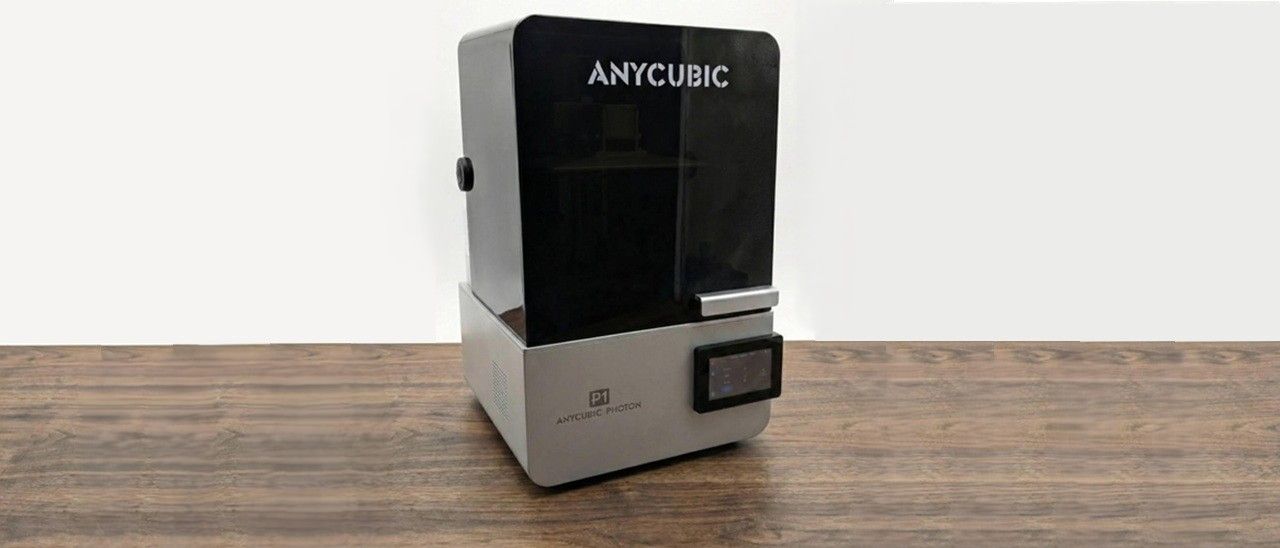
The Anycubic P1 comes fully assembled out of the box. You’ll just need to remove the packing material from the build plate area and peel the screen protectors and labels off the printer.
If you choose any add-ons, such as the perforated build plate or dual-material build plate system for this printer, those will be supplied in separate boxes.
The P1 started running its checks and was notified of an anomaly when checking the level of the bed on the right build plate, saying it was slightly off where it wanted to be. The printer then walked me through the steps of leveling the build plate.
I was not expecting the printer to rely on a pressure system for leveling. There’s no more having to grab your paper and level one by one with this printer. As you adjust the screws by turning them in or backing them away, the system updates on the screen, telling you if you’re getting closer to level or not. The calibration process overall makes things much easier than previous resin printers for anyone to jump in and understand how to get started.
The Anycubic Photon P1 is not your typical Anycubic Printer. It’s marketed as a prosumer-level printer, and it shows in many areas. The vat is built of high-quality aluminium, and its locking system is very unique. Iit does away with the standard screw-down style, and instead has a dual slide-out, lock-in-place system. The same upgrade can be found with the build plate locking system, as the common screw-style locks for the vat are now swapped for a slide lock system. These upgrades alone make this printer stand out already and make it a fantastic upgrade for those with an older model. No more loose screws and no more lost vat screws in the vat – yippee!
The vat comes with an integrated drip system for smaller prints. Our test machine included an extra print for an add-on drip mount that attaches to the side of the vat for longer prints to drip. It’s a nice addition, but ultimately seems a bit clunky and an obvious afterthought.
Anycubic states that the P1’s heated vat can keep 1000ml of resin controlled at up to 40 degrees C (104 Fahrenheit). This is great for those who have their printers in colder climates. The system can take about 5 minutes to reach the desired temperatures when it’s below -15 C (5 degrees F).
The Anycubic Photon P1 uses USB, or you can print directly from the Slicer or Anycubic App via Wi-Fi. Wi-Fi support is common in most modern printers these days, but it’s still very convenient.
The Touch display is well thought out and simple to use. At 4.5 inches, it’s small enough not to overtake the entire look of the machine, but still big enough to be comfortable for your eyes and fingers to use. One quirky thing I must point out, though, is the sound the Anycubic’s screen makes when it’s pressed; it sounds like a microwave. I personally disable the sound on printers. With how many I have, it would drive me up the wall, but this one almost deserves to be kept enabled for fun.
The Anycubic Photon P1 comes with the company’s latest version of Photon Workshop.
This is the only software at the moment that lets you use the dual-material function. While I am normally against company-specific slicer software, Anycubic has done an amazing job making this as user-friendly as possible. I was actually taken aback at how comfortable I was using it, and how many features it includes.
If you don’t want to use Anycubic’s software, though, Lychee recently announced that the single-plate setup can now be used with their slicer, with dual-material plate support in the works. Chitubox doesn’t support the Anycubic Photon P1 yet, but I suspect it will be added at some point.
Before you can admire your prints, you’ll need to wash them with isopropyl alcohol and cure with UV light . I like to give prints a 30-second hand rinse in a container of 95% Isopropyl alcohol, then a 2-minute rinse in the Anycubic Wash and Cure , which is sold separately and retails for $249 at Anycubic.com.
Completely dry the print with a hair dryer on cool – IPA left on the print will turn white. You can also let the print air dry in a place away from sunlight.
Supports are easier to remove before curing because they are softer. Clip the supports off with side cutters and use tweezers to remove stubborn supports. Remember to always wear gloves while handling uncured prints.
Then place the print in a UV curing station for 15 minutes, or outside in bright sunlight for a few hours.
Your IPA should never be flushed down the drain, especially after being contaminated with uncured resin. Instead, keep using the resin until it’s too dirty, then leave the container open to evaporate. The remaining sludge can be cured with UV light or the sun before being thrown away.
Supports should also be cured before being thrown away.
Key considerations
- Investor positioning can change fast
- Volatility remains possible near catalysts
- Macro rates and liquidity can dominate flows
Reference reading
- https://www.tomshardware.com/3d-printing/SPONSORED_LINK_URL
- https://www.tomshardware.com/3d-printing/anycubic-photon-p1-review#main
- https://www.tomshardware.com
- Advancing Open Source AI, NVIDIA Donates Dynamic Resource Allocation Driver for GPUs to Kubernetes Community
- Steam starts gathering FPS data with latest client update — company to estimate framerates based on your hardware, Beta feature to focus on SteamOS devices
- Hobbyist builds a homebrew Intel 8086 ISA accelerator card — maker’s project improves integer multiplication on these retro systems by 250%
- Crypto platform Drift suffers from hack suspected to total $270 million — firm goes into damage control mode, suspends deposits and withdrawals
- Modder creates hybrid PlayStation, combining the guts of two original PS1 consoles into one custom PCB — system features native microSD card & HDMI support
Informational only. No financial advice. Do your own research.