
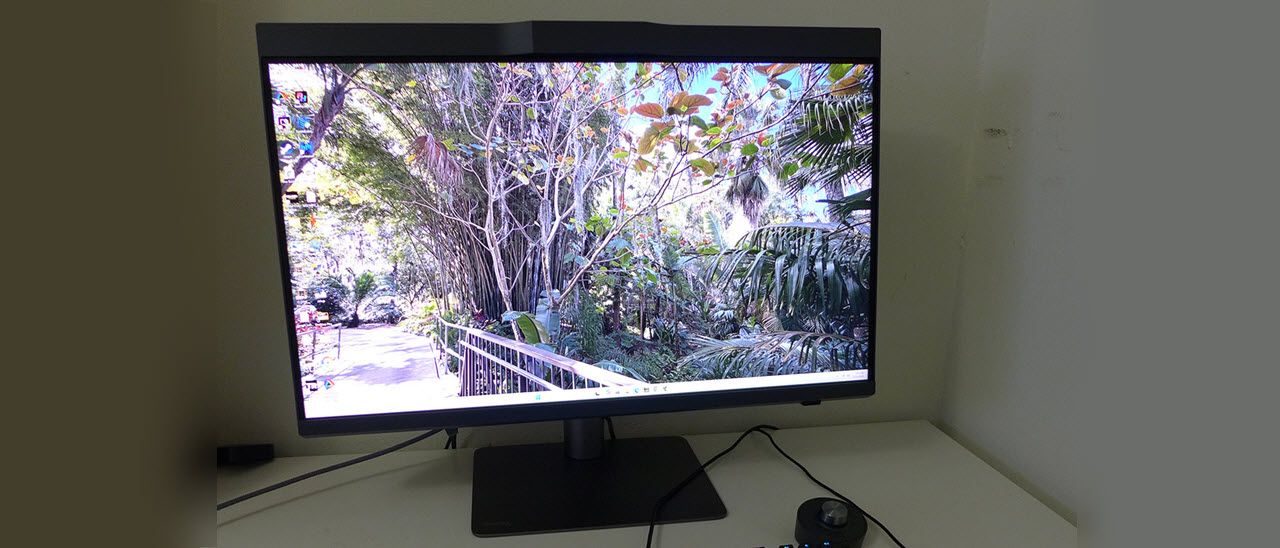
The PD2770U is a decent value among professional screens for $1,700 at this writing. It’s built to BenQ’s usual high standard and, with all its features, makes for a compelling choice if you’re shopping for a color reference monitor.
The PD2770U comes in fully recyclable packaging with no crumbly foam in evidence. The panel, upright and base are heavy and substantial and form a solid package when assembled, no tools required. The accessory bundle includes a screen cleaning cloth, DisplayPort and two USBs, IEC power, and the HotKey Puck controller. BenQ doesn’t include batteries, so you’ll need to find two AAAs to power it. You also get a nice snap-on light hood lined with light-absorbing material.
The side view is slim unless you attach the light hood, which is over eight inches deep. You can see in the photo that there is a cable management loop on the upright, which telescopes through its 4.6-inch range. You also get 5/20 degrees tilt, 15 degrees swivel and a 90-degree portrait mode with OSD auto-rotate if you wish. Movements reflect BenQ’s premium build quality. The PD2770U is clearly built to last.
Facing out the back is a well-stocked input panel. There are two HDMI 2.0, one DisplayPort 1.4 and two USB-Cs. One handles video and provides 96 watts of power and the other is an upstream port for USB hub functions. The PD2770U has two KVM modes that let you bind video and USB ports for control of multiple systems. On the bottom of the bezel are two USB-A ports (v3.2) and a headphone jack. There are no internal speakers.
Each preset mode has a choice of screen uniformity or brightness as the priority. Choosing the former limits brightness to around 230 nits. The latter setting bumps that up to 315 nits. I found very good uniformity in my sample, so I turned the compensation off in all modes.
GamutDuo is a cool feature that lets you compare different color parameters side by side. You get two versions of the image, and the toggles change the right pane. You can view differences in color gamut, color temperature and gamma. You can also see the effect of sharpness on the image.
The PD2770U is ready to go out of the box with a factory calibration in place. You’ll see in the tests that it is spot on for gamut tracking, nearly perfect for gamma and just inside the visible error threshold for grayscale. My sample benefited from an initial calibration using the built-in meter. I did this using the OSD and BenQ’s Palette Master Ultimate (PMU) app. Either method takes around 12 minutes per mode. You can create custom configurations, up to three, with PMU. It lets you specify luminance, gamut, color temp and gamma. When finished, it shows you all the data along with reference photos to help you evaluate flesh tones and other familiar things like landscapes and black and white images.
I explored the color modes I would use most: Display and Cinema P3, Adobe RGB, sRGB, and BT.709. They default to specific gamma and color temperature settings, which I’ve listed in the table below.
These are not absolute specs, and in fact, BenQ is a bit different than the Asus ProArt screens I’ve covered here. sRGB gamma has undergone revisions in the past, and its latest spec is closer to 2.4 power. BT.709 is more commonly associated with BT.1886 gamma, though 2.4 power is also correct. I noted that the PD2770U made the correct distinction between Display and Cinema P3 by altering the color temp for Cinema to compensate for the reddish Xenon bulbs used in theater projectors. If you want to change any parameter, run the PMU app and save the result to one of the three Custom modes. To recalibrate any fixed mode, the OSD makes it very easy. And you can do multiple modes in one go, and schedule it for off-hours if you like.
In use, the PD2770U is simply gorgeous to look at. Though it doesn’t have the deep blacks of an OLED, its Nano Matte panel manages ambient light better than most LCDs, which makes the image appear deeper and more realistic. It looks even better with the light hood installed.
My absolute favorite thing here is the HotKey Puck. I know a remote seems like a minor part of the equation, but how I interact with a display is important, especially since most of the pro screens I review are close in performance. Dialing brightness up and down like an old-fashioned volume control is super fun and easy. The dial also makes OSD navigation a snap. It has three buttons that can be set to monitor functions or, through Display Pilot, to open your most-used apps. Press button one and get Photoshop, for example. And viewing signal info with one press is handy.
I’ll talk about this during the test notes later, but I must give BenQ kudos here for making the PD2770U a true Adobe RGB monitor. This standard isn’t common for on-screen graphics or photography, but it is used extensively in the print industry because of its ties to Pantone Matching. The PD2770U is both Pantone and Calman certified. In days of old, when LCD backlights were CCFL tubes, Adobe monitors had a special version of this tube that increased green saturation. Adobe RGB green is a little greener than P3 green. Today’s LED backlights, even with Quantum Dot films, can’t quite get there. BenQ has found that extra color. If you grade content for print, the PD2770U is a class leader.
The only thing I wish for here is something for game content creators. The PD2770U is a 60 Hz display with no Adaptive-Sync or overdrive. It has decent input lag relative to other 60 Hz screens, but fast-motion gaming is just too blurry to be fun. With so much content creation focused on motion, it seems like an unnecessary omission. It’s great for video postproduction, but rendered content needs more than 60fps to be smooth.
Takeaway: If you’re a content creator, the PD2770U is an awesome choice for photography, print, onscreen graphics, video postproduction or any workday task. It has a thoughtfully designed calibration routine that’s equally convenient whether you use the OSD or outboard software. It’s easy to manage with scheduled calibration and multiple display monitoring. It’s also one of the few true Adobe RGB monitors you can buy at any price. It sports premium build quality and can serve as a trusted tool for the long term.
Current page: Features and Specifications
Key considerations
- Investor positioning can change fast
- Volatility remains possible near catalysts
- Macro rates and liquidity can dominate flows
Reference reading
- https://www.tomshardware.com/monitors/gaming-monitors/SPONSORED_LINK_URL
- https://www.tomshardware.com/monitors/gaming-monitors/benq-designvue-pd2770u-27-inch-4k-professional-monitor-review#main
- https://www.tomshardware.com
- Blowing Off Steam: How Power-Flexible AI Factories Can Stabilize the Global Energy Grid
- Crypto platform Drift suffers from hack suspected to total $270 million — firm goes into damage control mode, suspends deposits and withdrawals
- Anycubic Photon P1 Review: Dual Color/Dual Material, Tech Loaded
- PlayStation 3 emulator makes Cell CPU 'breakthrough' that improves performance in all games — 'All CPUs can benefit from this, from low-end to high-end!' says R
- Memory will consume 30% of hyperscaler AI data center spending this year, a 4X increase over 2023 — Nvidia gets preferential supply terms well below standard ma
Informational only. No financial advice. Do your own research.