
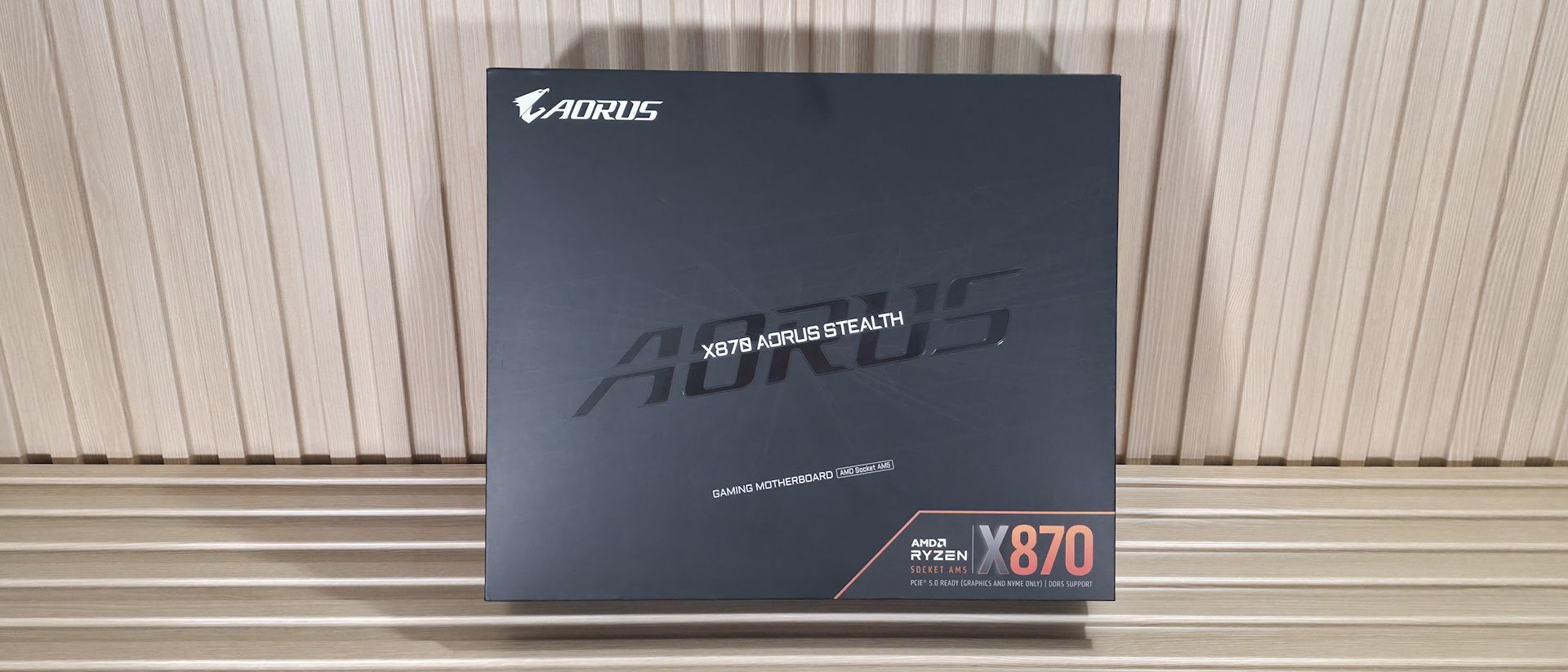
To put it succinctly, the Stealth doesn’t come with a lot of extras, but it does offer what you need to get started. Gigabyte includes the typical guides and stickers, some pads for the M.2 sockets, a quick-connect for the front-panel header, two SATA cables, and a quick-connect Wi-Fi antenna. Nothing extraordinary here.
(Image credit: Future) (Image credit: Future) (Image credit: Future) (Image credit: Future) (Image credit: Future) (Image credit: Future) For an all-black board, the X870 Aorus Stealth looks good and blends into any black or dark-themed setup. You won’t find any RGBs onboard (contrary to their website that shows RGB next to the DRAM slot, it’s reflective and did not light up on our board), so any lighting has to come from the chassis or connect them using the motherboard headers (controlled via RGB Fusion software). The large VRM heatsinks are connected through a heatpipe to share the thermal load. On top is a gloss-black design element, with the Aorus Falcon flexing proudly towards the bottom. The first M.2 socket has its own individual heatsink, while the bottom three use a large plate-style heatsink, both using the M.2 EZ-Click and EZ-Latch features to make installation and removal easier. The plate heatsink’s design is split diagonally, with Aorus branding in the middle, flanked by a brushed aluminum finish on the left, and a matte finish on the rest. In all, I do like the appearance and wire-free aesthetic these rear-connect motherboards provide, as they really clean up the case's interior.
(Image credit: Future) (Image credit: Future) Zooming in on the front, we get a better look at the connector-free front side and how clean it looks. We won’t talk much about the VRM heatsinks (covered above), but we will move right to the DRAM slots. Each slot uses locking mechanisms on both sides to secure the RAM. Gigabyte lists support of up to 256GB and speeds to DDR5-8200, which is plenty fast for the platform. The board ran our DDR5-6000 and DDR5-7200 kits using the 9900X without issue, as also ran DDR5-8000 on the APU.
In the right corner are the four debug LEDs (CPU, DRAM, VGA, Boot) to help with POST issues. If there’s a problem booting your PC, the LED indicating the issue remains lit, giving users a general idea of where the problem is. The 2-character debug LED gives more detailed information, but this is fine for basic troubleshooting.
Just below that, in the EZ-Debug zone, are three simple buttons: Power, Reset, and QF Plus. The first two are self-explanatory. The QF_Plus button enables Q-Flash functionality, which allows you to update the BIOS when your system is off (S5 shutdown state). Simply plug the USB thumb drive into the dedicated port, then start the flash process by pressing the Q-Flash Plus button.
Flipping the board around to the rear, where all the connections are, we spy the two EPS connectors on the ‘right’ (8-pin and 4-pin; 8-pin required). Moving left in the image, we run across the first three (of eight) 4-pin fan headers. Each header supports both PWM- and DC-controlled devices, as usual. All headers output 2A/24W, which is plenty for a slew of fans or a pump for custom watercooling. Control over the fans is handled through the BIOS and Smart Fan 6, or the Gigabyte Control Center.
Working our way down the edge, we see the first 3-pin ARGB header, the 24-pin ATX power connector, and two more 4-pin fan headers. The two 2-pin headers are for temperature probes (not included, oddly), while below them are two more RGB headers (a 4-pin RGB and a 3-pin ARGB).
Power delivery on the X870 Aorus Stealth consists of 20 total phases, with 16 dedicated to Vcore. Power heads from the 8-pin EPS connector(s) in the top-left corner, then to an Infineon XDPE192C3D 12-channel controller. From there, it moves to the 16 Infineon PMC41410 80A SPS MOSFETs. It’s a capable solution that will handle anything you throw at it, including the Ryzen 9 9950X , the recently released Ryzen 7 9850X3D (fastest gaming processor around), or the purported Ryzen 9 9950X3D2 .
(Image credit: Future) (Image credit: Future) On the bottom half of the board, starting on the front-left side and under the plate heatsink, is the audio section. Gigabyte equips the Stealth with a last-gen solution: the flagship Realtek ALC1220 codec. We’d like to see the latest generation on the newest boards, but this solution is perfectly acceptable for an overwhelming majority of buyers.
In the middle of the board, under the heatsinks, are the four M.2 sockets. The top socket (M2A_CPU), with its own larger heatsink, supports up to 110mm devices and runs at PCIe 5.0 x4 (128 Gbps). Under the plate heatsink are three other sockets, each supporting up to 110mm modules. The top-most, M2B_CPU, is the other PCIe 5.0-capable socket, while the other two, M2C_XB and M2D_ASB, run up to PCIe 4.0 x4 (64 Gbps) and connect through the chipset.
Visible around the plate heatsink are two full-length PCIe slots. The top, reinforced slot, connects to the CPU and is your PCIe 5.0 x16 slot for your video card. It also uses the PCIe EZ-Latch Plus to secure your expensive graphics card in the slot. Simply install the card, and it locks, then press the button to remove. Easy breezy.
Moving right, past the chipset, and flipping the board over to see the connections, the first item we run into is the front-panel USB 3.2 Gen 2×2 (20 Gbps) connector. Next are two SATA ports, another system fan header, and last, a 19-pin USB 3.2 Gen 1 (5 Gbps) header.
We also captured some pictures of the chips Gigabyte uses on this board. We see ASMedia for USB, Infineon for PWM controller and MOSFETs, along with Realtek covering audio, PWM control, USB, and networking duties.
(Image credit: Future) (Image credit: Future) (Image credit: Future) (Image credit: Future) (Image credit: Future) (Image credit: Future) (Image credit: Future) On the bottom of the board, again on the backside, are a slew of headers you’d normally see on the front. It offers your typical connectivity, with nothing missing or anything worth a specific mention. Below we’ve listed all the connections across the bottom (rear) of the board.
The rear IO on the Aorus Stealth offers plenty of connectivity, including 13 USB ports. Starting on the left, we see four USB 3.2 Gen 1 (5 Gbps) ports (blue), the HDMI output (for iGPU use), four USB 2.0 (480 Mbps) ports (black), and along the bottom three Type-C ports (2x USB4/40 Gbps, 1x USB 3.2/10 Gbps). Just above the three Type-C ports are two USB 3.2 Gen 2 (10 Gbps) ports (red). Above that is the Realtek RTL8126 5 GbE, while to the right is the quick connect for fast Qualcomm-based Wi-Fi 7. Finally, on the far right is the audio stack with two 3.5mm (mic and line out) and SPDIF out.
Current page: Gigabyte X870 Aorus Stealth Features and Specifications
Key considerations
- Investor positioning can change fast
- Volatility remains possible near catalysts
- Macro rates and liquidity can dominate flows
Reference reading
- https://www.tomshardware.com/pc-components/motherboards/SPONSORED_LINK_URL
- https://www.tomshardware.com/pc-components/motherboards/gigabyte-x870-aorus-stealth-motherboard-review#main
- https://www.tomshardware.com
- Intel Core Ultra 5 250K Plus review: The new best $200 CPU
- PC makers face shortages of Intel and AMD CPUs that stretch up to six months — lead time for orders jumps from just two weeks in the face of AI demand
- HP's new AI workstation can expand horizontally to add 15% more internal volume — alternate side panel also includes more active cooling.
- We need your opinions to shape Tom's Hardware Premium
- How Autonomous AI Agents Become Secure by Design With NVIDIA OpenShell
Informational only. No financial advice. Do your own research.