
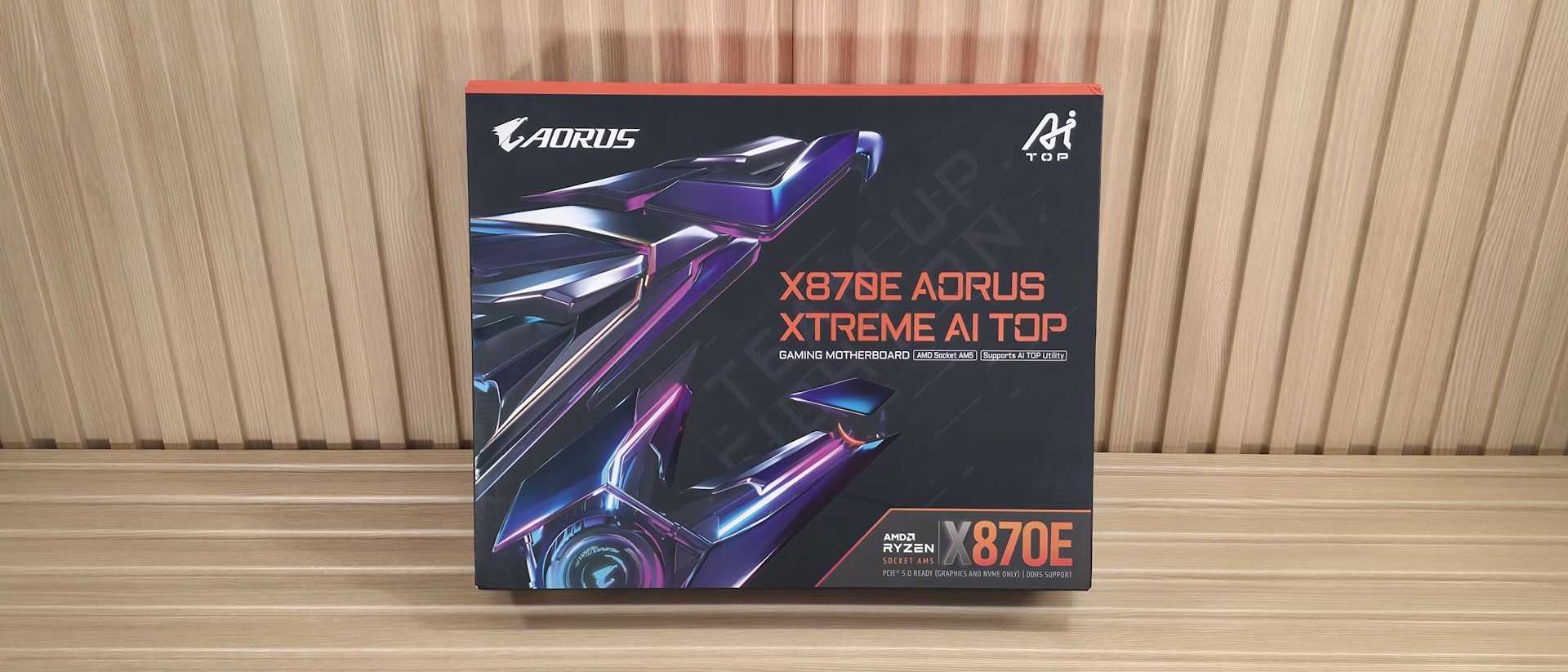
Overall, we like the look, and it gives off the premium vibes you expect from a flagship-class offering, but it isn’t the standout of the group (that would go to the Asus ROG Crosshair X870E Glacial we reviewed).
Zooming in on the front, we get a better look at the connector-free front side and how clean it looks. We won’t talk much about the VRM heatsinks (covered above), Focusing on the top half, starting on the left, we get a better look at the ‘polymo’-like RGB feature on top of the huge heatsinks. The VRM heatsink uses fins (with a ‘nano carbon coating’), a lot of mass, and a heatpipe connecting both to dissipate heat from the MOSFETs below. Between this and the MOSFETs below, you can run and overclock any compatible chip to its limit. The top has an infinity mirror look, which is cool, but again, I want a screen like the others at this price point. Above that are the two 8-pin EPS “UD” (Ultra Durable) power connectors for the CPU.
Just past the socket area to the right are the DRAM slots. Here, the two primary slots (A2/B2) use reinforcement, while all four have locking mechanisms on both sides to secure the sticks in place. Gigabyte lists support of up to DDR5-8800, which is plenty fast for the platform. We didn’t have any issues running any three of our kits, up to DDR5-8000 with an APU, as expected.
Above the DRAM slots are your first three (of 10) 4-pin fan headers. Each header supports both PWM- and DC-controlled devices and delivers 2A/24W, which is plenty for fans and pumps. Control over the headers is handled by the BIOS, Smart Fan 6, or Gigabyte’s Control Center (GCC) software. Just to the right are a 4-pin RGB header (also controlled through GCC and the RGB Fusion Applet inside) and a 2-pin reset jumper. At the top right is the first 3-pin ARGB header.
Rounding the corner and working our way down the right edge, we first hit the “EZ Debug Zone,” which includes power and reset buttons (the latter a multi-key you can assign various functions), the Debug LED (four LEDs), and the 80 Port 2-character debug display. Between them, you’ll have a good idea of any issues that arise during the POST process and holding up getting into Windows. Next is the 24-pin ATX power connector for the board, another 3-pin fan header, a 2-pin temperature header (use the included thermistors), and the front HDMI output for easy installation of additional monitors (think an internal display for sensors or the like). Last but not least is the front panel USB 3.2 Gen 2×2 (20 Gbps) connector.
Power delivery on the X870E Aorus Extreme AI Top consists of 22 phases, with 18 dedicated to Vcore. Power heads from the 8-pin EPS connector(s) in the top-left corner, onto an Infineon XDPE192C3D 12-channel controller. From there, it moves to the 18 Infineon PMC41430 110A SPS MOSFETs. It’s a robust solution that will handle anything you throw at it, including the Ryzen 9 9950X , the recently released Ryzen 7 9850X3D (fastest gaming processor around), or the Ryzen 9 9950X3D2 , even if you want to use extreme ( sub-ambient) cooling methods.
On the bottom half of the board, starting on the front-left side and under the plate heatsink, is the audio section. Gigabyte equips the Xtreme AI Top with a last-gen flagship Realtek ALC1220 codec and several audio capacitors (including the red WIMA). We’d like to see the latest generation on the newest boards, but this solution is perfectly acceptable for an overwhelming majority of buyers. The company also includes a USB DAC that connects your 3.5mm headphones to the DAC and Type-C to the PC.
In the middle of the board, under the heatsinks, are the four M.2 sockets. The top socket (M2A_CPU), with its own larger heatsink, supports up to 110mm devices and runs at PCIe 5.0 x4 (128 Gbps). Under the plate heatsink are three other sockets, each supporting up to 110mm modules. The top-most, M2D_SB and M2B_SB, run at PCIe 4.0 x4 (64 Gbps) again, supporting up to 110mm devices, and connect through the chipset. I’m surprised we don’t see a second PCIe 5.0-capable M.2 socket on a flagship, and others do have five or more. This isn’t a problem for most users, but the count is comparatively short here.
Visible around the plate heatsink are three full-length PCIe slots. The top two connect through the CPU and are reinforced with their Titanium PCIe UD Slot X, which connects to the CPU. The top slot supports PCIe 5.0 x16 (also x8), while the second supports PCIe 5.0 x8. The top slot is your PCIe 5.0 x16 slot for your video card, and it also uses the PCIe EZ-Latch Plus to secure your expensive graphics card. Simply install the card, and it locks, then press the button to remove. Easy breezy. The bottom full-length slot connects to the chipset, supports PCIe 4.0 x4, and is used for expansion cards.
Moving right, past the chipset, the first item we run into next to the PCIe release button is a voltage read point. There are several holes in the PCB where you’d put a probe to read the voltage of multiple important things, including VCore, VDDIO, VDD MISC, and more. If you need accurate voltage readings for your overclocking adventures (or just for curiosity's sake), your best bet is to use these read points, as software can sometimes be inaccurate. Moving down, we see the four SATA ports, two more 4-pin fan headers, and a 19-pin front USB 3.2 Gen1 (5 Gbps) connector.
We also captured some pictures of the chips Gigabyte uses on this board. We see ASMedia for USB, Infineon for PWM controller and MOSFETs, along with Realtek covering audio, PWM control, and USB. Networking duties are handled by Marvell and Qualcomm (for rev 1.0, Mediatek for rev 1.1).
(Image credit: Future) (Image credit: Future) (Image credit: Future) (Image credit: Future) At the bottom of the board are several headers offering typical connectivity for the location. There’s nothing really missing or worth a specific mention. Below we’ve listed all the connections across the bottom (rear) of the board.
The rear IO on the Aorus Xtreme AI Top offers enough connectivity, including 10 USB ports. Starting on the left, we see the convenient Clear CMOS and Q-Flash Plus buttons (for CPU-less BIOS flashing), and next to that is the rear HDMI (v2.1) port for using the integrated graphics on most CPUs. There are two USB4 (40 Gbps) Type-C ports, six USB 3.2 Gen 2 (10 Gbps) ports (red), and two USB 2.0 (480 Mbps) ports (black). Next are the two Marevell AQTion 10 GbE ports, the Mediatek-based (or Qualcomm depending on board version) Wi-Fi 7 (5.8 Gbps) quick connect, and, finally, the audio stack comprising line out, mic-in, and SPDIF optical output. I would have liked to see more USB ports here, like the competition, but most users won’t need or miss them.
Current page: Gigabyte X870E Aorus Xtreme AI Top Features and Specifications
Key considerations
- Investor positioning can change fast
- Volatility remains possible near catalysts
- Macro rates and liquidity can dominate flows
Reference reading
- https://www.tomshardware.com/pc-components/motherboards/SPONSORED_LINK_URL
- https://www.tomshardware.com/pc-components/motherboards/gigabyte-x870e-aorus-xtreme-ai-top-motherboard-review#main
- https://www.tomshardware.com
- PC makers report surging prices across different components — increasing costs are going beyond memory chip and processors, now affecting PCBs, plastic material
- Crypto platform Drift suffers from hack suspected to total $270 million — firm goes into damage control mode, suspends deposits and withdrawals
- NVIDIA DSX Air Boosts Time to Token With Accelerated Simulation for AI Factories
- Snap Decisions: How Open Libraries for Accelerated Data Processing Boost A/B Testing for Snapchat
- Nvidia App adds 'Auto Shader Compilation' for faster load times in games — beta feature automatically recompiles shaders in the background after every driver up
Informational only. No financial advice. Do your own research.