
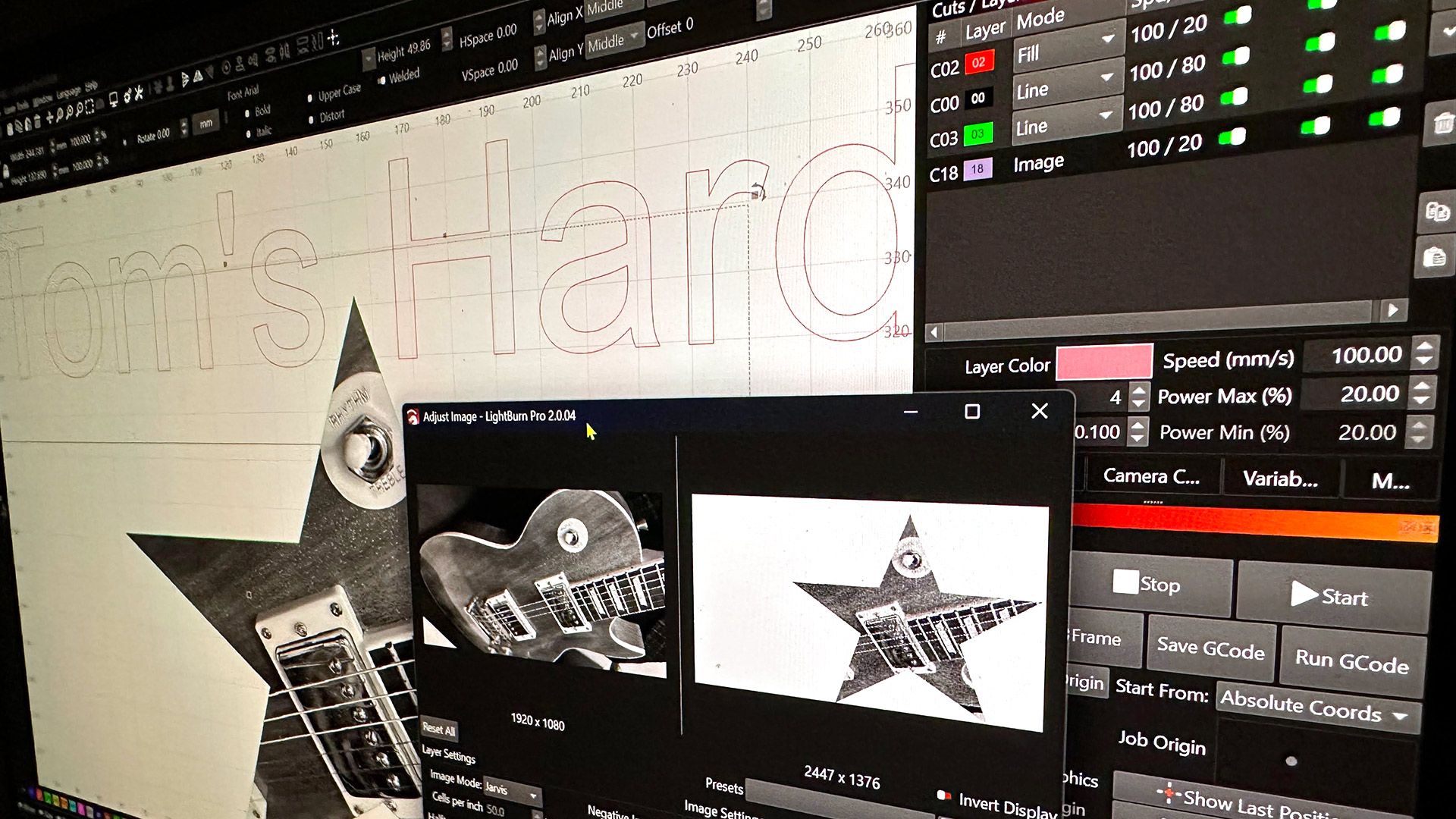
To the upper left side of the LightBurn UI there will be many familiar looking tools, such as shape drawing primitives, and ways to adjust shapes, group and combine shapes, and so on. Particularly useful laser-related tools include those to create arrays from selected shapes.
In essence, you have a basic vector illustration package here, with excellent alignment, arrangement, and Boolean combination tools. This will be particularly useful for drawing the cut lines for your projects, if you feel you don't need to harness the power of a full-blown illustration software package.
The vector tool set is a natural fit for clean, accurate cuts, but laser users will often want to mix their material cutting with some engraving. This is often where importing bitmap/raster graphics (such as.JPG, .PNG, .TIF, etc.) comes in.
LightBurn has you covered for the easy import, manipulation, and engraving output of bitmaps, too. In the example above, you can see I've imported a picture of a guitar to the canvas. Then I masked it with a star shape I drew using the built-in vector tools. At the time of the screenshot, I am viewing the Adjust Image options dialog. This is an important step toward achieving a pleasing level of contrast and detail in your material.
With all the variations between materials and lasers available, there's no perfect preset formula for great output. You will have to go through some trial-and-error adjustments to optimize things for your particular setup. Factory suggested settings are likely to provide 'OK' results, but time spent calibrating and testing both engraving and cutting samples of your favorite materials is always worthwhile.
One of the last things we want to highlight about LightBurn and similar laser software packages is the usefulness of the 'kerf' settings in preparing 2D sheets for 3D construction. This is where the software can adjust output to allow for the burned-away material waste when a laser cuts. Say you draw a precise 100mm square vector cut in the software, and then laser-cut a pine plank. Take out your steel rule, and you might find the finished cut object is actually 98mm square, or even smaller. This is because the laser cut might burn away up to a millimeter of material all the way around a shape, depending on laser/settings/materials.
Kerf settings might safely be ignored for many projects. However, if you are outputting several sheets for what will be assembled into a 3D project, tweaks to kerf can mean the pieces slot/interlock much more precisely. That will give your boxes, or other assembled sheet material work, a better fit and finish.
We have mentioned these aspects of LightBurn, as they are laser-specific features that differentiate packages like this from illustration software. However, these are typical features in most laser control packages.
Differentiating hardware with custom software suites is a growing trend among laser machine producers. For the last two lasers I tested, both brands suggested the best way to use their shiny new hardware was with their own-branded bundled software, though they also offered some initial LightBurn support.
As someone who prefers to use tried-and-tested 2D tools like Photoshop and Illustrator for preparing bitmaps and vectors, respectively, I am quite flexible with laser-specific software. It doesn't have to do much beyond allowing me to import, arrange, and output my files, with plenty of settings to dial in great output.
So, beyond a few software bugs, these laser-maker-branded suites were excellent at their tasks. Moreover, they worked with the full gamut of hardware-specific features like LiDAR autofocus, rotational attachments, positioning, and preview cameras — straight from the box — no need to wait for a third-party software vendor to get around to adding support for new-fangled software.
ComMarker's own software is simple but does enough (Image credit: Tom's Hardware) xTool's latest software hides lots of functions under a clean interface – but with familiar features easy to access (Image credit: Tom's Hardware) xTool software with live camera integration (Image credit: Future) That means my advice is to at least give the own-brand bundled software a shot. You might find it does the jobs you need with minimum fuss, with full, easy-to-access support for the hardware you are using. Moreover, though there may be some unfamiliar new features such as 'AI' tools and project library integrations in these apps, they invariably still cover the basics – with a canvas, simple shape creation and arranging tools, import tools, and output layers and laser settings tools.
As hinted at above, though, some LightBurn pros working across multiple machines will probably like to keep their workflow under a single roof.
Choosing to originate your laser artwork in either vector or bitmap tools is one of those horses for courses decisions, where you should choose according to each image format's strengths. However, there are overlaps in the qualities of either format. Moreover, for simple cuts like rectangles, ellipses, and compound shapes easily made in laser cutter software, you can do without a dedicated vector drawing package and use the built-in shape tools most laser software provides.
If you want to create a laser output design that goes beyond including simple type or cutting shapes, it is worth investing some time and effort to prepare vector artwork to be imported onto the laser software canvas. In my recent work, I relied on 2D illustration software to create some complex cut Halloween and Xmas decorations to be cut from wood and perspex. These included various types of outlines and shapes.
When I traced and duplicated a guitar scratchplate, high-precision and easy adjustment of elements for iterative tweaking was also essential. This could only practically be done with vector illustration software. In my case, I rely on an old copy of Adobe Illustrator that only just remains compatible with the latest version of Windows. I've been using it for decades, so it is a favored, trusty, and non-subscription software tool. However, there are good modern and free alternatives like Affinity Studio and Inkscape – which can also be used to craft complex .SVG files, which laser software import filters seem to favor.
(Image credit: Tom's Hardware) (Image credit: Future) (Image credit: Future) Vector files aren't just for cut lines, though. They can also be the best for engraved type, logos, and other design elements where are clearly defined edge will work well. Engraving a logo of your favorite sports team on a glass tankard will probably work best from a vector source file, for example.
Most vector software (and some laser software) allows for tracing bitmaps into vector, but in my experience, the results are hit-and-miss. But it is good to see that laser software can now often edit vector graphics nodes and undertake other basic edits, so you don't have to keep flipping back to the dedicated illustration software, exporting, and importing, to make small changes.
The strength of bitmap graphics is as a source for photo-like engraving. If you want a photo of your dog on a painted steel pendant (for example), you will probably want to import one of your favorite doggy pics for the purpose.
You can do this straight into most laser software and make adjustments / apply preset adjustments to match optimized output settings for various materials. However, if you are more familiar with Photoshop, or the free GIMP or Affinity Studio software, you might like to fine-tune the shape, brightness, contrast, and levels of the bitmap artwork there. It is mostly a matter of preference and practice, which you will end up preferring over time.
During my testing and comparisons, it was notable that laser software like LightBurn is specifically tailored for mono photo processing, with its wide variety of monochrome dithering, threshold, and other adjustments.
Modern general photo editing software, however advanced, tends to neglect halftoning and dithering algorithms that were so important during the mono monitor/newsprint era, and that translate well to laser engraving. GIMP is one welcome exception to this trend.
I hope this laser software-focused article has provided some interesting and worthwhile insight into the topic. And it is a big topic, where if something already works for you, it might be worth sticking with your favorite apps and methodology.
There are so many other important aspects to getting the most from your laser, like hardware choice, materials choice, and preparation, to become familiar with. Nevertheless, we hope the cut and engraved results you can get will soften the learning curve and make the quest to get the most from your laser enjoyable.
Mark Tyson Social Links Navigation News Editor Mark Tyson is a news editor at Tom's Hardware. He enjoys covering the full breadth of PC tech; from business and semiconductor design to products approaching the edge of reason.
Key considerations
- Investor positioning can change fast
- Volatility remains possible near catalysts
- Macro rates and liquidity can dominate flows
Reference reading
- https://www.tomshardware.com/maker-stem/SPONSORED_LINK_URL
- https://www.tomshardware.com/maker-stem/laser-cutting-and-engraving-from-a-software-perspective-master-your-hardware-and-optimize-your-creative-output-with-some-software-know-how#main
- https://www.tomshardware.com
- Robots’ Holiday Wishes Come True: NVIDIA Jetson Platform Offers High-Performance Edge AI at Festive Prices
- Laser cutting and engraving from a software perspective — master your hardware and optimize your creative output with some software know-how
- Adata XPG Mars 980 Blade 2TB SSD Review: Affordable Luxury
- New York's Mayoral Inauguration bans Raspberry Pi and Flipper Zero — devices join explosives, guns, drones, and beach balls on prohibited items list
- Nvidia's CUDA Tile examined: AI giant releases programming style for Rubin, Feynman, and beyond — tensor-native execution model lays the foundation for Blackwel
Informational only. No financial advice. Do your own research.