
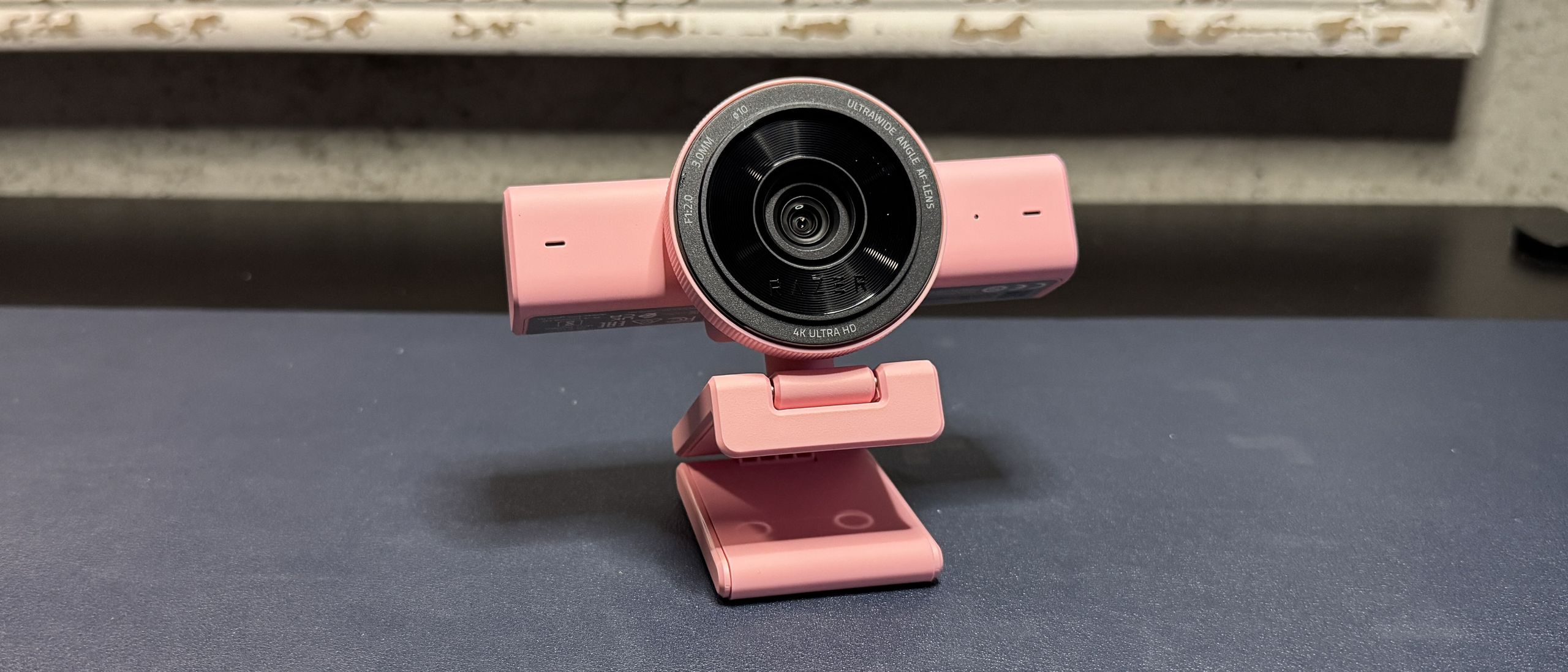
The Kiyo V2 performed very well in the well-lit testing scenario, especially when it came to white balance and auto-exposure. The white balance was almost perfect right out of the box: It gave my skin enough color that I looked alive, but not so much that it was obviously oversaturated. The webcam also did a very good job with auto-exposure, though I still found that I preferred the picture I got by tweaking the exposure manually in Razer's Synapse software.
I wasn't a big fan of the webcam's extra-wide 93° field of view, as it ended up showing too much of my space. Luckily this can be configured in Synapse (with zoom/crop). But the picture still looked good at a wide angle, with less distortion and warping than I expected. Razer's webcams tend to be tuned for a slightly more dramatic, cinematic picture than most webcams, which I particularly like — I don't think most people are looking for a webcam that's just pure, undiluted image quality; most people want a webcam that makes them look good.
To test the webcam's low-light performance, I turn off all of my lights and three of my monitors, leaving just one 34-inch monitor as my sole source of illumination. I take my photos with the Windows 11 camera app occupying about half of that screen, and my desktop wallpaper takes up the other half.
The Kiyo V2 performed decently well in this scenario, though it tended to overexpose the subject (me) at the expense of the background. Still, I didn't look too washed out most of the time, and the overall image quality was good: There wasn't too much artifacting, and it was a little noisy in darker areas (as expected).
To test the webcam's performance in over-exposed settings, I turn off all of the lights in front of me, except for my single 34" monitor, and keep the lights behind/over me turned on. If you're not sitting in a pitch-black room, the most common lighting scenario most people are going to end up with is (at least slightly) over-exposed — unless you're streaming professionally, you probably don't have a ton of lights behind your monitor.
The Kiyo V2 also performed fairly well in this scenario — or, well, it lit everything pretty evenly. It did a good job of balancing the exposure of the subject with the exposure of the background, and it also managed to get plenty of detail from the background without too much notable blowout. The result wasn't necessarily the most aesthetically-pleasing, but it worked well enough.
The Kiyo V2 works pretty well out of the box, especially if you already have decent lighting set up. It does an excellent job with auto-exposure and white balancing, but the ultra-wide 93-degree field of view is probably too much exposure (the other kind) for most people. Most of us don't want people to see everything we have in the background. To configure this and other settings, you'll need Razer's universal peripheral software, Synapse.
Synapse is far from my favorite piece of software, but at least for webcams, its clunkiness makes sense. Synapse lets you adjust the webcam's field of view (by zooming — up to 4x), auto focus, auto exposure, and color balance, manually. It has some streamer-friendly features, such as the ability to save different zoom presets and assign shortcuts, so you can quickly switch between angles while you're streaming.
You can also toggle on some software-based features, such as HDR, dynamic noise reduction, and low-light compensation. There are a couple of microphone settings as well, but let's face it — you're not using the webcam's built-in mics unless you're absolutely desperate (or your computer automatically switched to them when you plugged the camera in, and you didn't realize it). Like most webcam mics, they're just average; you'd be better off using the built-in mic on your laptop or anything else, first.
The Kiyo V2 is a nice follow-up to the wildly expensive Kiyo Pro Ultra — it's got great image quality and 4K resolution, though the Kiyo Pro Ultra still looks better overall, if you're looking for the best picture (both in quality and aesthetics). If you have a free USB-C port, this webcam is definitely worth a look. If you don't have a consistently free USB-C port, however, this might be frustrating — nobody wants to keep plugging in a chunky USB-C cable every time they want to get on cam, and there are other things vying for that port (in my case, an external hard drive that could probably be plugged in elsewhere, but still). While I get that the Kiyo V2 probably requires a lot of power, other webcams that strongly advise you use their specific cable/port combo usually still work pretty well if you don't — but the Kiyo V2 doesn't even try.
Sarah Jacobsson Purewal is a senior editor at Tom's Hardware covering peripherals, software, and custom builds. You can find more of her work in PCWorld, Macworld, TechHive, CNET, Gizmodo, Tom's Guide, PC Gamer, Men's Health, Men's Fitness, SHAPE, Cosmopolitan, and just about everywhere else. ","collapsible":{"enabled":true,"maxHeight":250,"readMoreText":"Read more","readLessText":"Read less"}}), "https://slice.vanilla.futurecdn.net/13-4-19/js/authorBio.js"); } else { console.error('%c FTE ','background: #9306F9; color: #ffffff','no lazy slice hydration function available'); } Sarah Jacobsson Purewal Social Links Navigation Senior Editor, Peripherals Sarah Jacobsson Purewal is a senior editor at Tom's Hardware covering peripherals, software, and custom builds. You can find more of her work in PCWorld, Macworld, TechHive, CNET, Gizmodo, Tom's Guide, PC Gamer, Men's Health, Men's Fitness, SHAPE, Cosmopolitan, and just about everywhere else.
abufrejoval Form factor and data rate on USB aren't necessarily connected, so just because the included cable is USB-C on both ends, doesn't mean you can't use a USB-A port via another cable, an adapter or a hub. From what I could discern the camera sends MJPEG frames which aren't easy on bandwidth, but still only require less than a 1Gbit/s at 4k30Hz, fully within what a normal 5GBit/s USB3 port can deliver. Perhaps you could check the actual connect rate of the camera at the port e.g. via HWinfo if you use Windows? If it's just the typical USB3 base of 5Gbit/s, chances are it will work just fine with a matching cable, adapter or even with the monitor's build in hub, so you won't waste precious ports e.g. on a mobile laptop, that you dock via USB-C to that monitor for everything from power deliver, screen output and peripherals. Reply
Key considerations
- Investor positioning can change fast
- Volatility remains possible near catalysts
- Macro rates and liquidity can dominate flows
Reference reading
- https://www.tomshardware.com/peripherals/webcams/SPONSORED_LINK_URL
- https://www.tomshardware.com/peripherals/webcams/razer-kiyo-v2-review#main
- https://www.tomshardware.com
- The Future of AI Is Open and Proprietary
- Blowing Off Steam: How Power-Flexible AI Factories Can Stabilize the Global Energy Grid
- Sony freezes memory card orders in Japan amid growing storage crisis — the company attributes the cause to ‘shortage of semiconductors’
- The Future of AI Is Open and Proprietary
- HP Omen Max 45L review: Flagship desktop gaming PC performance with a price tag to match
Informational only. No financial advice. Do your own research.