
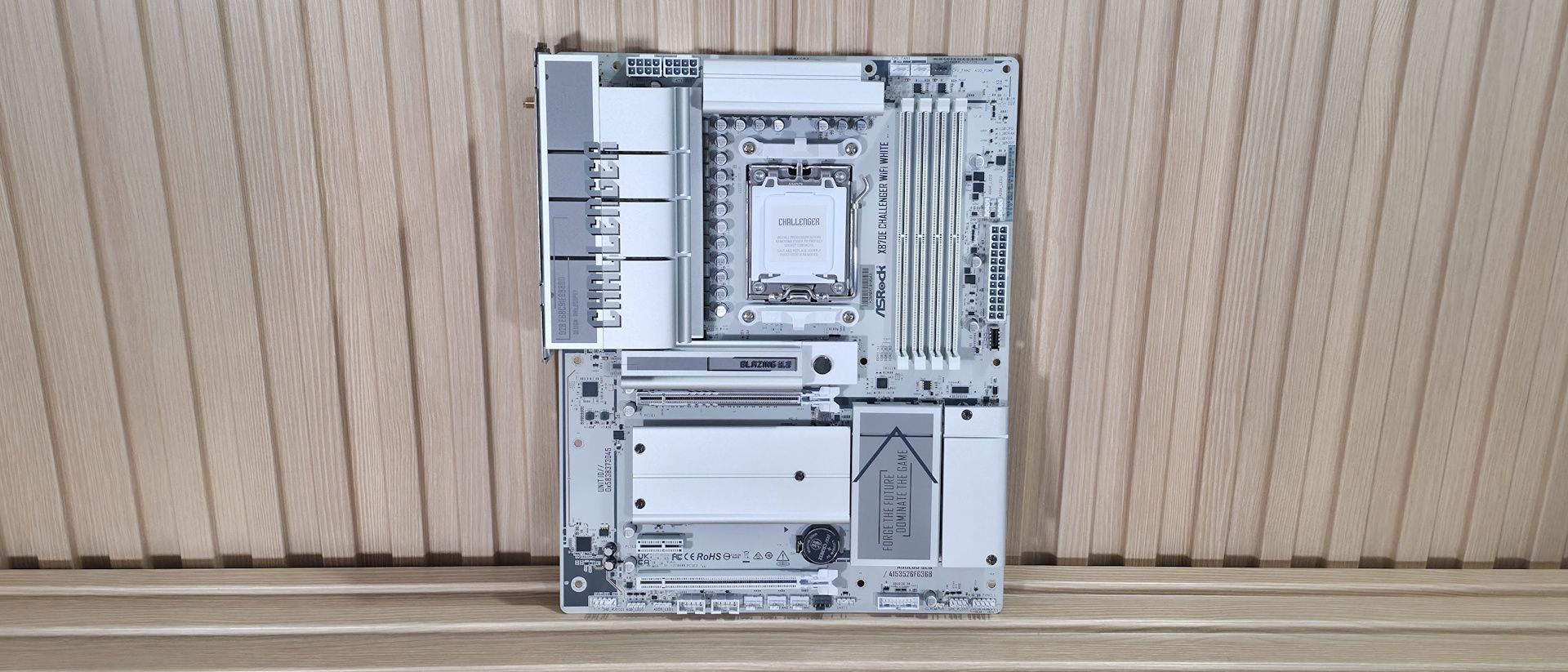
Above the DRAM slots are the first three (of seven) 4-pin fan headers. Each header supports PWM- or DC-controlled devices and can be tweaked through the BIOS or ASRock’s Windows-based software. The CPU_FAN1 header supports up to 1A/12W output, while the rest support up to 3A/36W each. You should have plenty of headers and enough power.
Shifting focust to the right corner and moving down, the next feature is the 4-LED POST Status Checker. There are LEDs for the CPU, Boot, VGA, and RAM. During the POST process, these light up and, if there is a problem, the offending area’s LED stays lit, giving you a general idea of where the issue is. It’s not quite as helpful as the 2-character debug display on higher-end boards, but is a lot better than nothing and typical on a lower-priced motherboard.
Continuing down the edge, we spy two (of three) 3-pin ARGB headers, just above the main 24-pin ATX power connector. ASRock’s Polychrome Sync application controls the attached RGBs, offering several canned light patterns and adjustments. Last but not least is the front panel USB 3.2 Gen 2×2 (20 Gbps) Type-C connector. If there’s one thing that stands out on this board, it’s the number and speed of the USB ports — there are a lot, and ASRock didn’t skimp on speed.
Power delivery on the X870E Challenger is one of the most robust we’ve seen, especially for a $230 budget-class motherboard. It comes with 23 total phases, 20 dedicated to Vcore. Power flows from the 8-pin EPS connectors to the Renesas RAA229628 20-phase PWM controller. From there, power heads to the more Renesas bits, this time the R2209004 110A SPS MOSFETs — a surprise to see on a board of this class. The 2,200A available will most certainly handle anything you throw at it. Flagship processors like the Ryzen 9 9950X or Ryzen 9 9950X3D2 , overclocked even with extreme cooling methods, are also no problem.ALBM – board6 (bottom half):
On the bottom half of the board, we’ll start on the left where there’s a fully exposed audio solution that shows off the flagship Realtek ALC4082 codec, along with a couple of dedicated audio capacitors. While you won’t find a fancy integrated amplifier or DAC, this is the best codec for the platform and another pleasant surprise on such an inexpensive offering.
In the middle of the board are three PCIe slots. Two are full-length, and one is an open-ended x1-size slot. The top slot uses ASRock’s Reinforced Steel Slot, connects through the CPU, and is your PCIe 5.0 x16 slot (no bifurcation) for video cards. The second full-length slot at the bottom connects through the chipset and runs up to PCIe 3.0 x2, while the tiny x1 slot runs at PCIe 3.0 x1 speeds and also sources its bandwidth from the chipset. I’d like to see a PCIe 4.0 slot for extra bandwidth, but as-is it will easily support lower-bandwidth expansion needs.
Mixed among the PCIe slots, to the right of the chipset heatsink, sit four M.2 sockets. The top socket, under the large, tiered, DIY-friendly heatsink, is the one and only PCIe 5.0 x4 (128 Gbps) “Blazing” M.2 socket (M.2_1). M.2_2/3, which both run at PCIe 4.0 x4 (64 Gbps), are under the plate-style heatsink that’s secured with three captive screws. M.2_4 runs vertically along the right edge of the board and also supports PCIe 4.0 x4 drives. The good news is that the M.2 drives don't share lanes. You can pack the motherboard full of them, and each will run at full bandwidth without degrading or disabling another part. If your system needs a RAID setup on M.2, the board supports RAID0/1/10 modes. I wish there were more DIY-friendly features, but at this price, something has to give to keep prices low.
Hidden under the M.2 heatsink, along the right edge, is a 19-pin USB 3.2 Gen 1 (5 Gbps) header and the two SATA ports (supports RAID0/1 modes). Finally, we've included a few images of the board's active ICs. ASRock uses a mix of ASMedia (USB4), Realtek (audio, networking), and Renesas for the power bits.
(Image credit: Tom's Hardware) (Image credit: Tom's Hardware) (Image credit: Tom's Hardware) (Image credit: Tom's Hardware) (Image credit: Tom's Hardware) Image 1 of 5 View Original
At the bottom are several headers, including front-panel audio and USB ports. A complete list of connectivity is listed below (from L to R):
Flipping the board around to the rear IO, you can see it’s chock-full of colorful USB and other ports. On the left are Clear CMOS and BIOS Flashback buttons. Next to those are the Wi-Fi 7 (remember, it’s ‘only’ 160 MHz) antenna connections and the HDMI (v2.1) port. Next to that are stacks of colored USB ports. In total, there are 12: two USB 4 (40 Gbps) Type-C ports that double as video outputs; five USB 3.2 Gen 2 (10 Gbps), two of which are the Lightning USB ports (yellow, and designed to reduce latency by using different controllers). Three USB 3.2 Gen 1 (5 Gbps) ports (purple) support USB PD 3.0 charging up to 5V@3A (15W). Lastly, the two USB 2.0 ports are black. Above one of the Type-C ports is the Realtek 5 GbE, and finally, on the right end, is the audio stack with two 3.5mm analog jacks and SPDIF outputs.
If you’re an esports gamer where every millisecond counts, the lighting gaming ports could come in handy. Otherwise, the feature adds little value for the average user.
MORE: Best Motherboards MORE: How To Choose A Motherboard MORE: Best Motherboard Deals MORE: Best Motherboard Combo Deals MORE: All Motherboard Content
Current page: ASRock X870E Challenger Wifi White Features and Specifications
Key considerations
- Investor positioning can change fast
- Volatility remains possible near catalysts
- Macro rates and liquidity can dominate flows
Reference reading
- https://www.tomshardware.com/pc-components/motherboards/SPONSORED_LINK_URL
- https://www.tomshardware.com/pc-components/motherboards/asrock-x870e-challenger-wifi-motherboard-review#main
- https://www.tomshardware.com/membership
- North Korea named as primary suspect in $387 million Bitget crypto hack
- UK Games Expo bans games and art made mostly using AI
- NVIDIA Launches DSX Ready to Qualify Power and Cooling Products for AI Factories
- University of Manchester Uses NVIDIA Earth-2 to Forecast Air Pollution Across the UK
- Thieves steal Nvidia-labeled trailers expecting massive AI GPU payday, but score 40,000 pounds of sand instead
Informational only. No financial advice. Do your own research.