
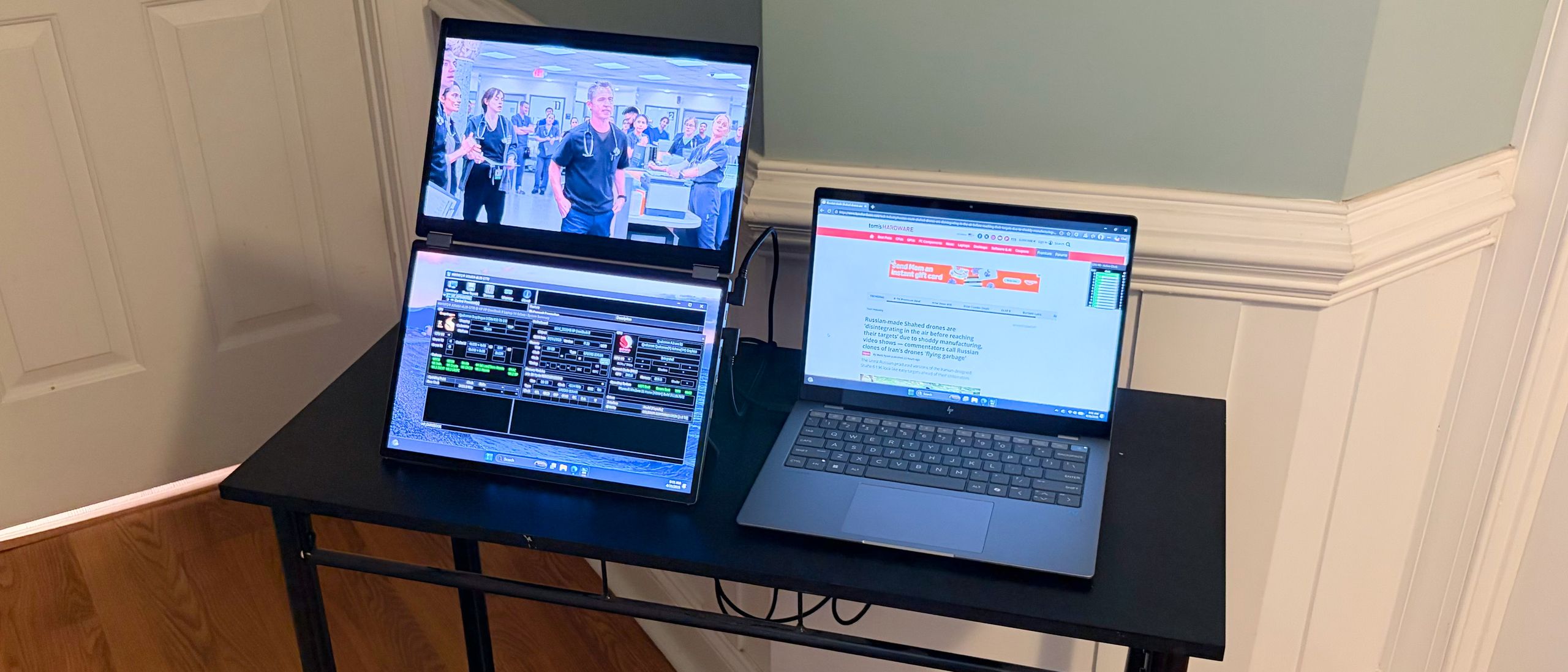
Asus provides four distinct ways of operating the MQ149CD, all of which I tried. The first is Mirror Mode, which simply duplicates the image source from your laptop to each of the MQ149CD’s displays. Split Mode duplicates the source image, but spreads it across both displays.
Extend Mode allows each display to display content independently. For example, you could have a game playing on your laptop’s display, a movie playing on the MQ149CD’s top display, and a Word document open on the MQ149CD’s bottom display. Finally, Independent Mode allows you to exploit two separate display sources with the MQ149CD. You could have one laptop outputting content to the first panel and a second laptop outputting content to the second panel.
All four modes are accessible from the OSD. Additionally, if you install the Asus Display Widget Center (available on Windows and macOS), the MQ149CD supports auto-rotation when switching between landscape and portrait modes (and vice versa).
The MQ149CD includes a rather comprehensive OSD, accessible by pressing the bottom OSD button or by pressing in on the jog wheel. Pressing the jog wheel once brings up a “mini” OSD: flicking up lets you control brightness, while flicking down gives you quick access to the four display modes.
(Image credit: Tom's Hardware) (Image credit: Tom's Hardware) (Image credit: Tom's Hardware) (Image credit: Tom's Hardware) (Image credit: Tom's Hardware) (Image credit: Tom's Hardware) (Image credit: Tom's Hardware) Pressing in on the jog wheel twice brings up the full OSD. From here, you have access to Asus’ preset picture modes, image settings, color settings, input selection, and overall settings (e.g., OSD timeout, power-saving options, language settings, etc.).
In addition, the Asus Display Widget Center allows you to access picture modes, hot keys for specific monitor features/functions, and power management.
When it comes to dual monitors, there may be slight variances between the panels due to manufacturing tolerances. Although each panel should have identical specs, we noticed slight differences between the top and bottom OLED panels, as noted in the charts below. With that said, the differences weren’t enough that you would notice them side-by-side.
Color performance from the two OLED panels is exemplary, as we’d expect. The MQ149CD is rated for a 1,000,000:1 contrast ratio , and black levels are immeasurable. In the default, Standard display mode, we measured 145.9 percent DCI-P3 coverage with the bottom panel and 131.2 percent on the top panel. Our measurements pegged the bottom panel at 206 percent of sRGB , while the top panel was slightly higher at 213.5 percent.
There were also differences in maximum panel brightness, with the bottom panel reaching 350.6 nits in Standard mode, and the top panel topping out at 329.8 nits. However, both figures were well below the manufacturer's claim of 400 nits for SDR content. In our HDR testing, the top panel reached 503 nits with a 10 percent window, while the top panel was slightly behind at 493 nits.
I had no trouble fitting it into my workflow, connecting it to an HP OmniBook X via a single USB-C cable. I found myself using both landscape and portrait orientations equally. If I wanted to watch a movie or TV show while I worked, I’d stack the two displays, with the media content playing on the top panel.
When working with text-heavy content and looking up information in my web browser, I’d have the two panels side-by-side in portrait mode. Thanks to the Asus Display Widget Center software, I can switch from landscape to portrait automatically, without having to open Display Settings in Windows 11 .
The Asus ZenScreen Duo OLED (MQ149CD) is one of the best dual-screen monitors I’ve tested to date. It improves upon the dual IPS panels I’ve tested in the past with the vibrant colors and deep blacks that OLED provides. Build quality was excellent across the board, and overall brightness was competitive in this field.
Asus provides several operating modes for the MQ149CD, including the ability for two systems to each control one panel. In addition, you can use the two panels side-by-side (portrait) or stacked on top of each other (landscape), with autorotation supported via companion software.
There are only two dings that I would level against the MQ149CD, with one of them being major. The minor flaw is that it lacks built-in speakers, although that isn’t an unforgivable sin, given that most speakers on portable monitors are mediocre at best. However, the biggest downside is the price tag. While you can find dual-screen portable monitors from KYY for around $250 or less , the MQ149CD has an MSRP of $600. While Amazon regularly puts the MQ149CD on sale for $500 , it’s still a hefty price to pay for dual screens.
Brandon Hill is a senior editor at Tom's Hardware. He has written about PC and Mac tech since the late 1990s with bylines at AnandTech, DailyTech, and Hot Hardware. When he is not consuming copious amounts of tech news, he can be found enjoying the NC mountains or the beach with his wife and two sons. ","collapsible":{"enabled":true,"maxHeight":250,"readMoreText":"Read more","readLessText":"Read less"}}), "https://slice.vanilla.futurecdn.net/13-4-23/js/authorBio.js"); } else { console.error('%c FTE ','background: #9306F9; color: #ffffff','no lazy slice hydration function available'); } Brandon Hill Social Links Navigation Senior Editor Brandon Hill is a senior editor at Tom's Hardware. He has written about PC and Mac tech since the late 1990s with bylines at AnandTech, DailyTech, and Hot Hardware. When he is not consuming copious amounts of tech news, he can be found enjoying the NC mountains or the beach with his wife and two sons.
Key considerations
- Investor positioning can change fast
- Volatility remains possible near catalysts
- Macro rates and liquidity can dominate flows
Reference reading
- https://www.tomshardware.com/monitors/portable-monitors/SPONSORED_LINK_URL
- https://www.tomshardware.com/monitors/portable-monitors/asus-zenscreen-duo-oled-mq149cd-review#main
- https://www.tomshardware.com
- Hermes Unlocks Self-Improving AI Agents, Powered by NVIDIA RTX PCs and DGX Spark
- Intel's Project Firefly creates sub-$600 laptops to compete with Apple's MacBook Neo — leverages China's smartphone manufacturing blueprint to produce affordabl
- Save a whopping $900 on this incredible 4-item AM5 combo from Newegg — for only $2,269, high-end parts including the flagship 9950X3D2 processor, 64GB of GSkill
- Intel kicks off development on next-decade 10A and 7A process technologies — 14A node remains on track for critical October PDK release
- MSI Raider 16 Max HX review: Elite gaming performance
Informational only. No financial advice. Do your own research.