
(Image credit: Tom's Hardware) (Image credit: Tom's Hardware) (Image credit: Tom's Hardware) (Image credit: Tom's Hardware) In Geekbench 6, the XPS 16 scored 2,839 points in single-core, matching the rest of the x86 field – that is, all but the Apple (4,168) and Asus (3,807), which dominated. The XPS 16 proved more competitive in multi-core, scoring 16,975 to practically tie its XPS 14 sibling with the same CPU (16,927) and outperforming the Acer (15,926), though it was slightly behind Apple (17,067) and couldn’t touch Asus (22,733). Meanwhile, the Core Ultra 7-equipped XPS 14 trailed far behind (7,964).
In our 25GB file transfer test, the XPS 16 averaged 1,782 MBps, marginally ahead of the Acer, Asus, and Core Ultra 7-equipped XPS 14, though ahead of the Core Ultra X7-equipped XPS 14 (1,420 MBps). Apple took the leading spot, with 1,925 MBps.
Finally, the XPS 16 finished our 4K-to-1080p Handbrake video transcoding test in 4 minutes and 1 second, the leading time after the overachieving Asus (2:08). The Acer was just behind (4:25) while the Core Ultra 7-equipped XPS 14 trailed (6:45).
Overall, the XPS 16’s Core Ultra X7 358H is a strong choice for demanding productivity and creative workflows. Despite being housed in a larger chassis, it showed nearly identical performance relative to the smaller XPS 14 equipped with the same CPU. It did, however, outperform the Aspire 16 AI also equipped with the same CPU, suggesting Dell’s thermal management is superior. Against the ARM-based Apple and Asus, however, the XPS 16 didn’t fare quite as well, especially against the Asus’ Snapdragon X2 Elite Extreme.
Those that don’t need as much CPU performance can get the XPS 16 equipped with the Core Ultra 7 355, but as shown in the XPS 14 equipped with that chip, it’s a steep step down. That CPU also loses out on the stronger Arc B390 integrated GPU.
To stress test productivity laptops, we run 10 loops of Cinebench 2024. The XPS 16 started at 895 points before dipping to 800 points for the second loop, then stabilizing between 933 and 961 points for the remaining loops, suggesting relatively stable thermal performance. During the test, the Core Ultra X7 358H’s P-cores averaged 3.09 GHz, the E-cores 2.64 GHz, and the LPE-cores 2.4 GHz.
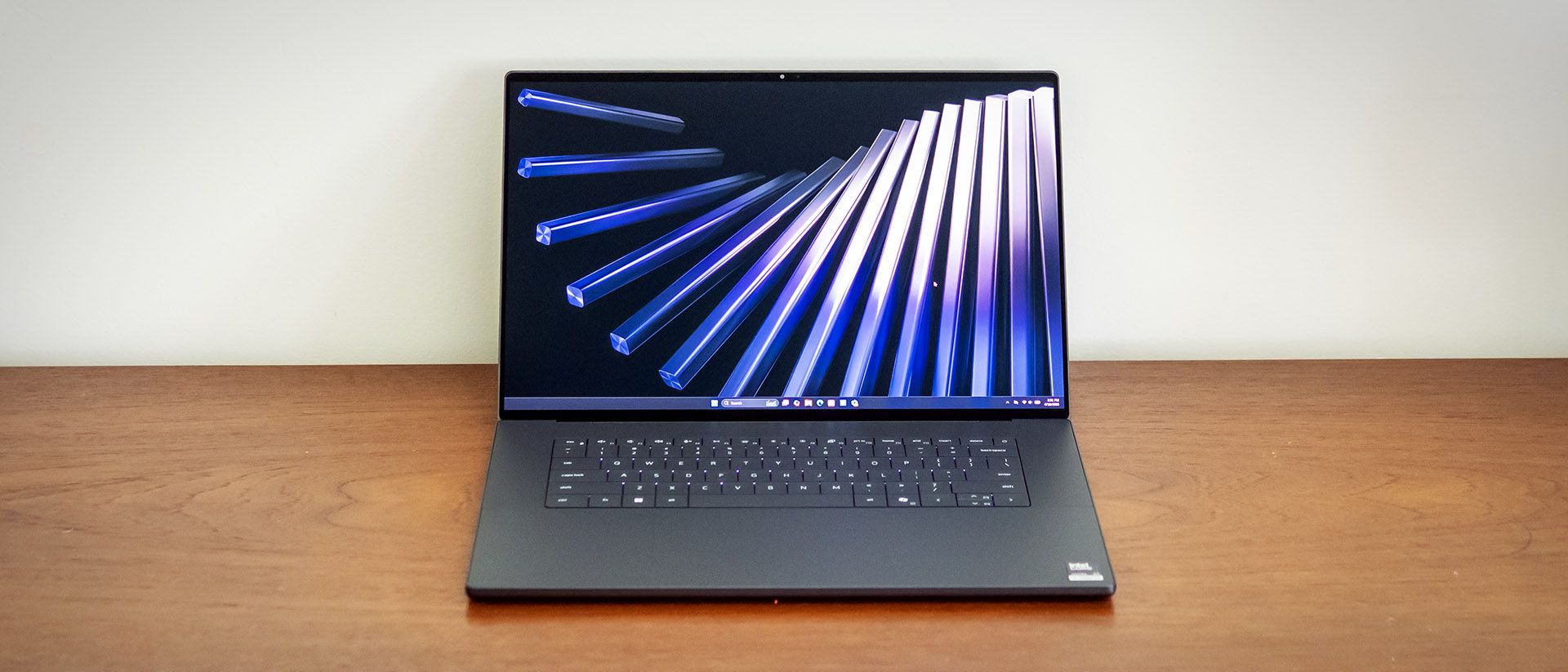
Dell equipped our review model with the top-tier OLED touch display, which uses tandem light-emitting layers for superior brightness. Its 3200 x 2000 resolution falls short of 4K, but it still looks razor-sharp in practice. Individual pixels are invisible to the eye, and there’s ample working space for spreadsheeting and content creation, such as Photoshop.
The OLED panel makes Star Wars: The Mandalorian look spectacular. Starfields look crisp against inky black backgrounds, with no haloing or light bleed, and the outstanding color coverage adds depth and richness to any scene. The 120 Hz refresh rate also benefits fast action and scrolling, which looks much smoother than on a typical 60 Hz display.
This OLED panel is a $150 upgrade from the standard 1920 x 1200 IPS panel, which boasts a variable 1-120 Hz refresh rate to maximize battery life. That 1 Hz panel doesn’t support touch or feature a glass surface.
The XPS 16 offers full sRGB and DCI-P3 color coverage, matching the Acer Swift 16 AI and besting the MacBook Air, which achieved only 83% DCI-P3. For context, the XPS 14’s IPS panel only covered 71% DCI-P3, so expect a similar loss of color if the XPS 16 is optioned with IPS.
On brightness, the XPS 16’s 364-nit peak isn’t impressive, but OLED panels don’t require as many nits to appear as luminant as an IPS panel (which adorn the MacBook Air, Zenbook A16, and the Core Ultra 7 355-equipped XPS 14).
Dell has pushed the design envelopes with its premium-tier keyboards, and sometimes with disastrous results. Last year’s Dell 16 Premium left out a physical function row in favor of a touch strip, which proved counterintuitive since you couldn’t tell what you were pressing without looking down.
Dell reversed course with the new XPS, restoring the physical Function row to its rightful place. Tactile feel has also improved, with switches that produce a more direct, less plastic-like feel and a pleasant tactile sound. The zero-lattice layout with no spacing between the keys remains an aesthetic choice and has a slight learning curve. I was occasionally hitting two keys at once, but my fingers quickly learned to respect the subtle boundaries between keys. After about an hour of using the keyboard, I was hitting my usual typing speed in MonkeyType, about 112 words per minute with 99% accuracy.
The XPS 16 also gets practicality points for its dark keyboard and white backlighting, which contrast nicely, something that wasn’t true of the white keyboard on the 16 Premium. (There is currently no light color on the XPS 16.)
This XPS redesign also restored the border around the massive touchpad. The line is subtle but tactile and provides confidence that you’re clicking in the right spot. The Gorilla Glass touchpad feels rock solid and provides responsive haptic feedback, which can be adjusted in Windows’ Settings app.
The XPS 16’s speakers make a respectable entertainment platform. Loud and clear despite being recessed in the chassis, they deliver full-bodied sound that projects well if the laptop is sitting on a solid surface. Bass is also above average for a laptop – watching Star Wars: The Mandalorian , I could feel the footsteps of an imperial walker and the impact of grenades and blaster bolts.
Oddly, Dell doesn’t preinstall the Dolby Access app, which provides access to Atmos equalizers to further tighten the bass and improve clarity and projection. I found the app in the Windows Store and installed it without a problem.
Upgrading the XPS 16 is quite different from other laptops. You start by removing the four Torx screws on the underside. The bottom panel doesn’t just come off – instead, you’ll need a thin plastic tool to press upward through the rear screw holes, which pops off the top of the chassis. Lacking specialized tools for that, I used a plastic toothpick and moderate force, which worked fine – I was able to then work my way along the edges of the chassis to pop the remaining clips.
(Image credit: Tom's Hardware) (Image credit: Tom's Hardware) With the top half of the chassis removed, you’ll have access to the 70 Wh battery and single M.2 drive slot. Nothing else can be upgraded, with soldered memory and wireless cards across all XPS 16 configurations.
Our battery test consists of web browsing, running OpenGL tests, and streaming videos with the screen at 150 nits while connected to Wi-Fi.
For a 16-inch OLED-screened laptop, the XPS 16 lasted an impressive 13 hours and 3 minutes in our battery rundown. That’s almost an hour longer than the Acer (12:12) and comfortably ahead of the Asus (10:26). The MacBook Air lasted considerably longer (15:28), though it’s important to note that we tested the 13-inch model. If the runtime of the IPS-screened XPS 14 is any indication (20:41), buyers prioritizing battery life might consider the IPS panel on the XPS 16 with a refresh late as low as 1 Hz – what it lacks in color, it should make up for in endurance, though you'd also have a lower resolution stretched across a larger screen.
We measure peak surface temperatures while running 10 loops of Cinebench 2024 multi-core. During the test, temperatures on the XPS 16 reached 93 degrees F between the keyboard’s G and H keys, 76 F on the touchpad, and 105 F on the underside towards the rear edge. Internally, the Core Ultra X7 358H averaged 77 degrees Celsius across all cores.
Dell includes two major apps on the XPS 16, the first of which is Dell Optimizer. It provides power profiles – Optimized (the default), Cool, Quiet, and Ultra Performance – and a battery charge mode that decides how quickly to charge the battery based on your usage. (How it determines this isn’t explained.) It also has a battery extender feature which, among other things, lowers the screen brightness on the fly to improve efficiency. (Users who want consistency may want to disable this feature, as we did for our battery testing.) The app also includes Dolby Vision display modes – bright, dark, or vivid.
The other included app, SupportAssist, provides core services including support access, diagnostics, and system updates. It also features a tutorial to help you set up your new PC and migrate your settings from another PC.
Dell covers the XPS 16 with a one-year Dell Care Plus warranty, with 1-2 business day onsite repairs after remote diagnosis.
Baseline configurations start at $1,749.99 with a 1920 x 1200 IPS non-touch display, Core Ultra 5 325 or Core Ultra 7 355 processor, 16GB of RAM, and 512GB of storage. Stepping up to the X-series CPUs automatically upgrades to 32GB of RAM (with 64GB as an option) and the more powerful Arc B390 integrated graphics. The top CPU is the Core Ultra X9 388H. Storage, which scales to 4TB, and the display can be chosen independently of the CPU.
Dell’s pricing places the XPS in the luxury market. Apple’s 15-inch MacBook Air starts at $1,299, though with 32GB of RAM and a 1TB SSD, it reaches $1,899. Acer’s Swift 16 AI is $1,799.99 and Asus’ Zenbook A16 $1,699, though they aren’t quite as premium as the XPS’ build quality. On the other hand, the XPS 16 is less expensive than the Samsung Galaxy Book6 Ultra , which is $2,799 with only 512GB of storage. Unlike the XPS, the Samsung can be configured with a dedicated Nvidia RTX 5060 GPU, but it commands an eye-watering $3,699 in that guise.
Dell was wise to bring back the XPS line, and the XPS 16 shows why. Its beautifully engineered chassis, superb OLED display, and strong performance are reminders of why this brand has earned its reputation over the years. Strong battery life, a crisp webcam, and good speakers round out the premium experience.
The compromises are few but meaningful. Relying solely on USB-C may streamline the design, but it limits practicality when many competitors offer a more versatile mix. And with OLED configurations surpassing $2,000, you won’t save any money buying this laptop.
Still, if you can live with the limited ports and premium price, the XPS 16 rewards with one of the most refined Windows laptop experiences you can buy.
Charles Jefferies is a freelance reviewer for Tom\u2019s Hardware US. He covers laptop and desktop PCs, especially gaming models. ","collapsible":{"enabled":true,"maxHeight":250,"readMoreText":"Read more","readLessText":"Read less"}}), "https://slice.vanilla.futurecdn.net/13-4-23/js/authorBio.js"); } else { console.error('%c FTE ','background: #9306F9; color: #ffffff','no lazy slice hydration function available'); } Charles Jefferies Freelance Reviewer Charles Jefferies is a freelance reviewer for Tom’s Hardware US. He covers laptop and desktop PCs, especially gaming models.
Key considerations
- Investor positioning can change fast
- Volatility remains possible near catalysts
- Macro rates and liquidity can dominate flows
Reference reading
- https://www.tomshardware.com/laptops/ultrabooks-ultraportables/SPONSORED_LINK_URL
- https://www.tomshardware.com/laptops/ultrabooks-ultraportables/dell-xps-16-2026-review-da16260#main
- https://www.tomshardware.com
- Lenovo Yoga Slim 7i Aura Edition (2026) Review: Vibrant display, lightweight design, and an endurance champ
- AMD Ryzen 9 PRO 9965X3D spotted on Passmark — company's first PRO chip with 3D V-Cache also bumps the lineup up to 16 cores
- Trump administration considers mandatory pre-release vetting of AI models — Anthropic's Mythos cited as catalyst for policy reversal
- Alienware 16 Area-51 review: OLED screen update
- Enthusiast recreates 43-year-old Apple Lisa with FPGA board — first commercial computer with a GUI faithfully cloned with modernized machine
Informational only. No financial advice. Do your own research.