
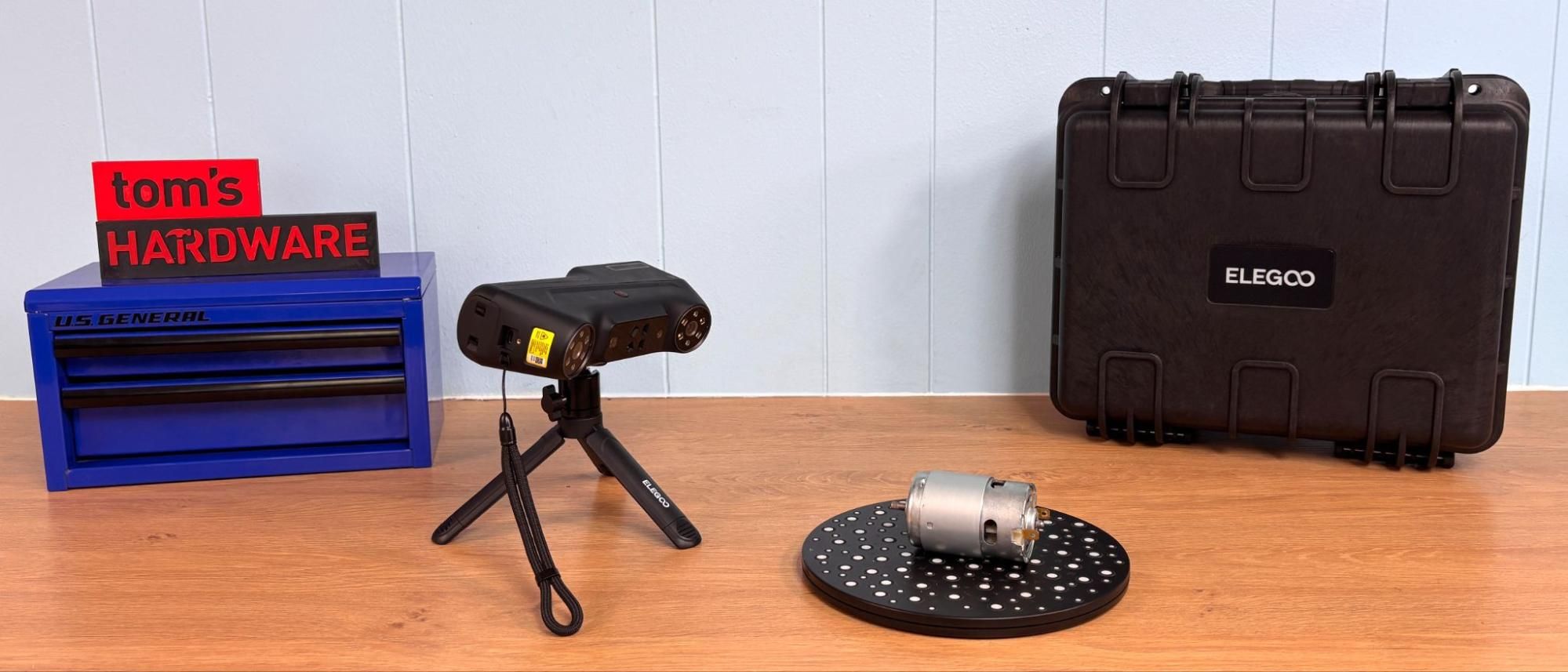
Calibrating the Elegoo M1 Ultra is fairly easy given its light weight and the easy-to-follow software. Using the glass calibration board, the scanner is aimed at various angles and heights, following the directions on screen. The software shows an image of where the scanner should be and an image of the scanner as you move it. You have to match the two before moving on to the next spot. Scanner calibration can be a chore, but calibrating the M1 Ultra was simple.
Elegoo Scan can be downloaded from Elegoo’s website for Windows and Mac. The software works and looks like CrealityScan, which is a good thing since both make cleaning up individual scans and stitching multiple scans together fairly easy. The software does require a bunch of memory, with the more, the merrier. I tried running the software on an older PC laptop which met the minimum requirements, except it had only 8 GB of RAM, and it was not enough.
Elegoo recommends a PC with Windows 10/11 (64-bit), an Intel Core i7 (13th Gen) or higher, an NVIDIA GeForce RTX 4060 or higher (8 GB VRAM), and 32 GB or more of RAM. For Mac, they recommend macOS 14 or later, with an Apple M4 or later, and 32 GB or more of RAM. Minimum specs for both are 16gb of RAM, with Windows 10/11 (64-bit), Intel Core i7 (7th Gen), and an Nvidia GPU (6 GB VRAM) for PC, and macOS 14 or later, with an Apple M2 CPU.
The Elegoo M1 Ultra has 4 blue laser scanning modes: 34 crossed laser lines for quick scanning, 7 parallel lines for finer details, 1 line for scanning deeper, more difficult-to-capture holes, and markerless. The fewer the lines, the more time the scans take. I should point out that the turntable in the photo was borrowed from the Creality Pika Scanner, which we reviewed previously.
One of my favorite use cases is scanning an item for import into a 3D printing project I am working on. I scanned a cheap 895 brushed motor commonly found in drills. The motor required several scans, and the M1 Ultra seemed to have trouble capturing the shinier parts of the object. Ultimately, I captured two scans that had enough data to be useful. The software has an automatic alignment tool which does a good job in most cases. In this case, it was baffled by the geometry. The manual alignment worked perfectly.
Manual alignment requires adding markers matching points on both images. You do not have to be super exact with the placement. The software will smooth out any overlaps.
Part of the mesh processing is hole filling. This also has an automatic and manual mode. Since the automatic mode was going to fill in the screw holes and cooling holes, I had to fill in the holes manually by clicking on them. This is a little tedious, but it worked well.
After hole filling, smoothing, and simplifying, I was able to export the file as an STL and open it in Tinkercad.
The size, and hole alignment were perfect for integrating the motor into a project.
This bust of Michelangelo’s David came with an early Creality scanner and has become my main test file. It took three scans for me to get a good model, which was a recurring theme with the Elegoo M1 Ultra.
Fortunately in this case, the auto alignment function worked perfectly.
Key considerations
- Investor positioning can change fast
- Volatility remains possible near catalysts
- Macro rates and liquidity can dominate flows
Reference reading
- https://www.tomshardware.com/3d-printing/3d-scanning/SPONSORED_LINK_URL
- https://www.tomshardware.com/3d-printing/3d-scanning/elegoo-m1-ultra-review#main
- https://futureplc.com/privacy-policy/
- Six pallets of Nvidia GPUs worth $11.4 million stolen in California cargo heist
- Boost your Nintendo Switch 2's storage for Zelda: Ocarina of Time with these microSD Express deals, starting at $48
- Nintendo Switch 2 sales dropped by 41% from last year due to console's price increase
- Things That Go Beep in the Night: Agentic AI Joins the Search for Extraterrestrial Signals
- Cloud Deployment Incoming: ‘Call of Duty: Modern Warfare 4’ Arrives on GeForce NOW
Informational only. No financial advice. Do your own research.