
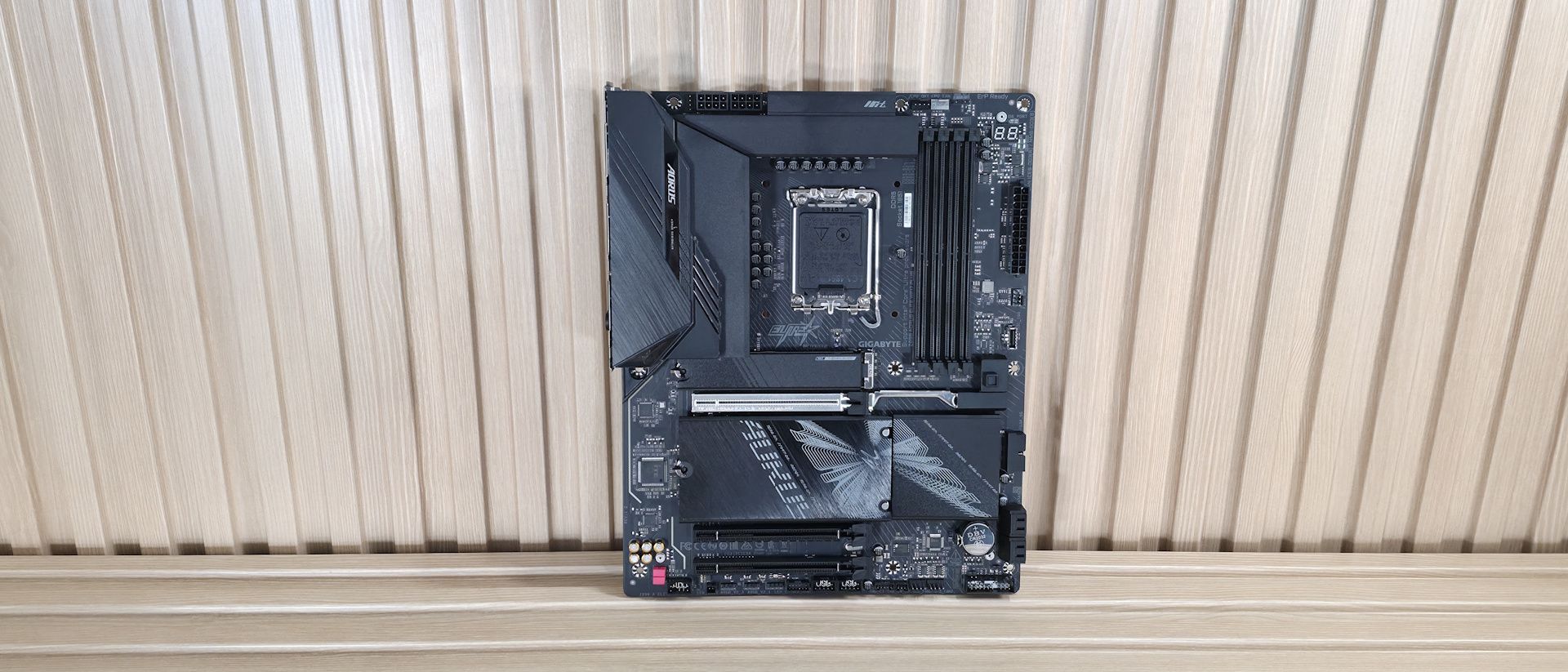
Moving past the socket area to the right, the next thing we run into are the four DRAM slots with locking mechanisms at the top and bottom. Gigabyte lists support for up to DDR5-9466 MT/s (OC), which is plenty fast for the platform and we’d say well past Intel’s sweetspot. Both our kits (DDR5-7600 and DDR5-8200) worked as expected during testing. As always, stick to the memory QVL to ensure compatibility.
Above the DRAM slots are the first three (of six) 4-pin fan/pump headers. Each header supports PWM- and DC-controlled devices. Gigabyte lists the output for each header at 2A/24W, which is plenty to support multiple fans or a custom water-loop pump/ecosystem. Control over these headers is managed via GCC and Fan Expert in Windows, or via the BIOS.
Along the right edge, the next items we run into are the two debug features. The first is the 2-character debug port/LEDs, and the second is the four-LED debug area. Both tell you where problems are during the POST process. The 2-character debug port gives you details, while the four LEDs generically tell you where the problem is (CPU, DRAM, BOOT, VGA). Looking down the edge, we see the 24-pin ATX power connector, another 4-pin fan header, and finally a front-panel USB 3.2 Gen 2 (10 Gbps) port. Those looking for 20 Gbps connectivity on the front panel will have to look elsewhere (or get an add-in card that supports it).
Power delivery on the Z890 Aorus Elite Wifi7 Plus has a total of 19 phases, with 16 dedicated to Vcore. Power is supplied to the OnSemi NCP81537 controller via the 8-pin EPS connectors. From there, it heads on to 16 OnSemi NCP302155 60A SPS MOSFETs. While the 960A isn’t a lot, it can easily handle the Core Ultra 7 270K Plus , Core Ultra 5 250K Plus , as well as the Core Ultra 9 285K. You can even overclock; just be sure to keep good airflow in your chassis, as the components here can get warm with sustained heavy use.
On the bottom half of the board, starting on the left, is the audio section, which includes the previous-generation flagship Realtek ALC1220 codec and a mix of standard (yellow) and WIMA (red) audio caps. It’s a solid audio solution for this class of board, the same as the Z890 Aorus Elite Duo X, though I would like to see the newest codecs (Realtek ALC408X) on the latest boards. You’d be hard-pressed to hear a difference, however.
In the middle of the board, between the M.2 heatsinks, are three full-length PCIe slots. The top slot sports an “UD” (Ultra Durable) reinforced slot and features the company's PCIe EZ-Latch Plus button for unlocking and releasing your graphics card. The slot connects the CPU, runs at the full PCIe 5.0 x16, and is the primary slot for discrete video cards. The bottom two full-length slots connect via the chipset, and both support PCIe 4.0 x4 speeds, making them good for high-speed expansion.
Mixed in with the PCIe slots are four other M.2 sockets. The top socket, above the primary graphics slot and working with its own (anemic-for-a-PCIe 5.0) heatsink, connects through the CPU and is the only PCIe 5.0 4x (128 Gbps) socket. It, like the others, supports devices up to 110mm. The three M.2 sockets below share the same heatsink, and all run through the chipset at up to PCIe 4.0 x4 (64 Gbps) speeds. The bottom-most, M2M_SB, also supports SATA-based SSDs. These M.2 sockets and SATA ports support RAID 0/1/5/10 for additional speed or redundancy (though RAID is not a backup).
Moving right, past the chipset heatsink on the right edge, is the 19-pin USB 3.2 Gen 1 (5 Gbps) connector and the four SATA ports (supporting RAID 0/1/5/10). We've also captured several images of the ICs used to make this motherboard work, including a mix of OnSemiconductor for power and Realtek for networking and audio. We've also captured several images of the IC's used to make this motherboard work consisting of a mix of Realtek for USB hub, Ethernet, and audio, and Vishay for MOSFETs.
(Image credit: Future) (Image credit: Future) (Image credit: Future) (Image credit: Future) At the bottom of the board are a slew of headers. You get your typical connectivity, with nothing missing or worth a specific mention. Below we’ve listed all the connections across the bottom (rear) of the board.
The rear I/O on the Aorus Elite WiFi7 Plus offers enough connectivity and includes a couple of buttons typically found on the motherboard itself. From left to right, we see those power and reset buttons, along with Clear CMOS and the Q-Flash Plus functionality. To the right is a DisplayPort output to use with integrated graphics. For USB ports, there are a total of 10: one USB4 40 Gbps Type-C port (that’s correct, USB4, not Thunderbolt 4), two USB 3.2 Gen2 (10 Gbps) ports, three USB 3.2 Gen 1 (5 Gbps) ports, and four USB 2.0 (480 Mbps) ports. Above the blue USB ports is the Realtek 5 GbE, and next to that, the quick-connect Intel Wi-Fi 7 (BE200NGW, 320Hz). Finally, on the right edge is the audio stack with two 3.5mm jacks (mic and line out) and SPDIF out.
MORE: Best Motherboards MORE: How To Choose A Motherboard MORE: Best Motherboard Deals MORE: Best Motherboard Combo Deals MORE: All Motherboard Content
Current page: Gigabyte Z890 Aorus Elite Wifi7 Plus Features and Specifications
Key considerations
- Investor positioning can change fast
- Volatility remains possible near catalysts
- Macro rates and liquidity can dominate flows
Reference reading
- https://www.tomshardware.com/pc-components/motherboards/SPONSORED_LINK_URL
- https://www.tomshardware.com/pc-components/motherboards/gigabyte-z890-aorus-elite-wifi7-plus-motherboard-review#main
- https://www.tomshardware.com
- NVIDIA, KRAFTON, NC and Reigning ‘League of Legends’ Champions T1 Celebrate RTX Spark at Korea’s PC Bangs
- Gaming soundbar can be hijacked from over 16 yards away without touch or pairing — the company allegedly refuses to label the blatant security flaw a cybersecur
- Bag a huge $308 saving on a two-year ExpressVPN Advanced sub and get four bonus months on top for free — 78% discount gets you this fast no-logs VPN service wit
- Taiwanese startup FormulaV Line wants to break into US market with two new unique cases — company expects products to become available on Newegg later this year
- Industrial Software Leaders Build Secure, Autonomous AI Engineers With NVIDIA NemoClaw
Informational only. No financial advice. Do your own research.