
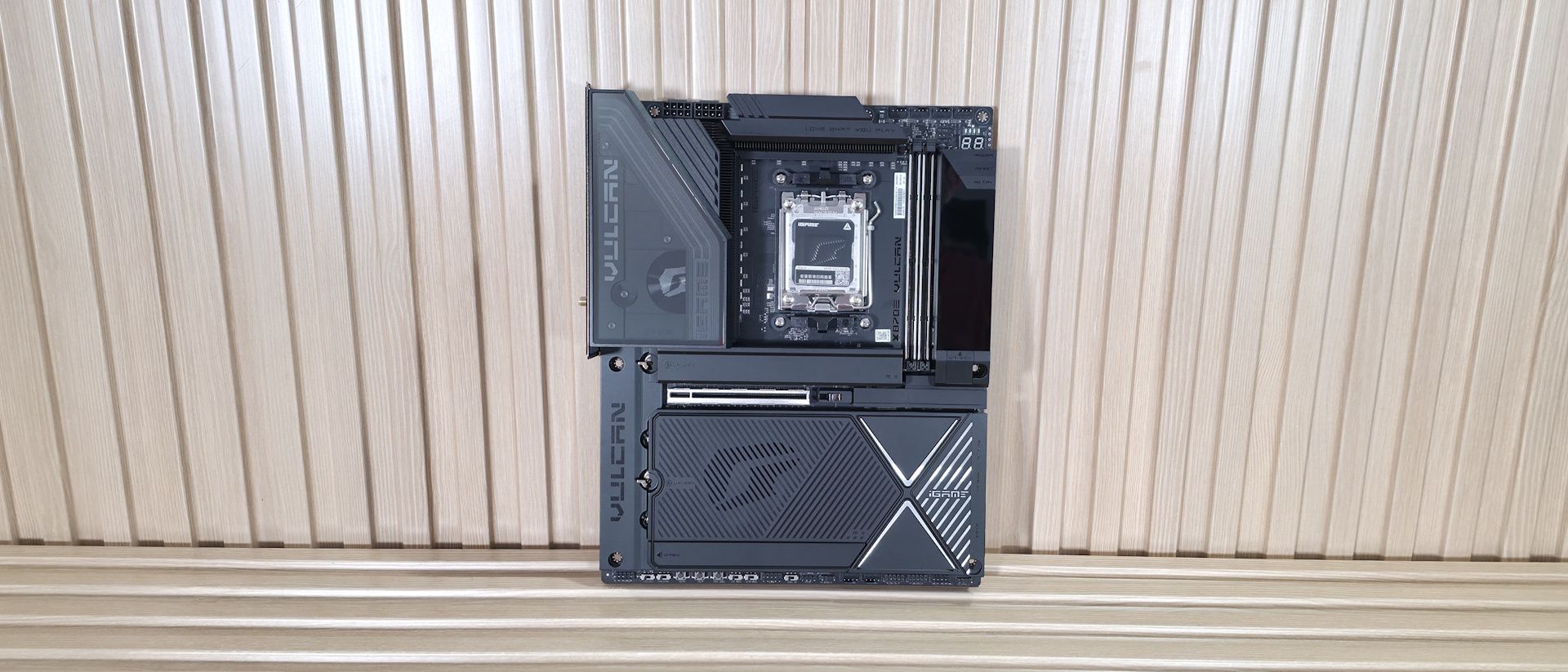
Zooming in on the top half of the board reveals the VRM heatsink. It’s a 3D design with a smoked plastic cover hiding the Vulcan branding and Colorful symbol, creating a pretty cool aesthetic. The three-line RGB feature follows the shape of the cover with iGame branding, backlit at the bottom. The VRM heatsinks themselves have plenty of mass and use an array of fins to dissipate heat from the powerful VRMs beneath. You’ll see later that they do a fine job keeping things running in spec. Above that are the two 8-pin EPS power connectors (one required) for power to the processor. Moving past the socket area to the right, the next thing we see are the two reinforced DIMM slots with a single locking mechanism at the top (where there should be room to access), supporting up to a crazy DDR5-10400+(OC) MT/s when using 8000-series APUs. With Ryzen 9000 series desktop processors, you’re still looking at a fast DDR5-8600 MT/s. You can stuff up to 128GB into the two-slot board, if needed. Being an overclocking-focused board, it also allows you to unlock higher voltage mode (called High-V) to really push the limits.
Above that are the first four (of eight) 4-pin fan headers. Each header supports PWM and DC-controlled devices. But the documentation doesn’t show the output, so we should assume they are 1A/12W each, as overloading the headers could destroy the motherboard. We’ve reached out to Colorful and will update this section when we hear back.
Also in that area are the first two (of four) 3-pin ARGB headers, with the other two located along the bottom edge. The iGamecenter software controls any attached (or integrated) RGB’s. In this same area, you’ll also run into a voltage measurement point (covering VDDCR, VDDIO, VDDCRSOC, and MISC) for extreme overclocking, when knowing the exact voltage matters more (software can sometimes be a bit off). Colorful also provides troubleshooting help via the four LED debug light (DIMM/CPU/GPU/Boot), and the 2-character LED debug code light, which indicates, generically (4 LEDs) and more specifically (2-character LED), where the problem lies during the POST process. Moving down the right side, the first thing we notice is the Vulcan Smart Screen. Along with holding Power, Reset, and Retry buttons, this small LCD screen displays system monitoring information or images (Colorful provides several, but some features are behind a login wall) and is configured through the iGamecenter software. If you don’t set it up, you get a splash screen upon boot, then it shuts off. I wish it would display system information, or at least something, by default. Hiding underneath the screen are another 4-pin fan header, the 24-pin ATX power connector, and a supplemental PCIe (6+2) connector for the board.
Power delivery on the X870E Vulcan OC consists of 22 phases, with 18 dedicated to Vcore. Power comes from the 8-pin EPS connector(s) in the top-left, then to the Renesas RAA229521 controller, and finally to the 18 Renesas RAA2209004 110A SPS MOSFETs. The 1,980 amps available to the processor are plenty for any compatible chip, including the Ryzen 9 9950X or the Ryzen 9 9950X3D2 , even if you want to use extreme (sub-ambient) cooling methods.
The bottom half of the board is covered with heatsinks and shrouds, leaving very little of the PCB exposed. On the left, hiding under a shroud, is the audio solution. It features the Realtek ALC1220 codec and an ESS ES9219Q DAC. I would have preferred the latest-generation 4000 series codec, but few will complain about this implementation.
In the middle of the board are two full-length PCIe slots and five M.2 sockets. Starting with the PCIe slots, the top slot (reinforced) is your primary (and only!) connection to the CPU and supports PCIe 5.0 x16. It also bifurcates into x8/x4/x4, as it shares bandwidth with M.2_2/3, and features quick-release functionality via a button on the bottom of the LCD screen, called VGA Snap-fit. The bottom slot, hidden under a plastic shroud, connects to the chipset and runs at PCIe 4.0 x4.
Mixed in above and between the PCIe slots are five M.2 sockets. The top M.2 sockets (M.2_1/2/3) are the first of three that support PCIe 5.0 x4 (128 Gbps). M.2_1 supports devices up to 110mm and is mounted under its own plate-style heatsink. I would have liked to see something a bit larger for the ‘primary’ M.2, but this should be fine for most situations. M.2_2/3 also connects through the CPU and runs PCIe 5.0 x4 as well, sharing lanes with the PCIe slot. If M.2_2/3 is in use, the top PCIe slots drop to PCIe 5.0 x8 speeds, and the other x8 slot is assigned to M.2_2/3. I like this implementation because you can get three ultra-fast PCIe 5.0 drives without losing entire slots and maintaining the SATA port count. Moving past the chipset to the right edge, we find the USB 3.2 Gen 2×2 (20 Gbps) front panel connector. This connection supports PD 3.0 charging at 60W so that you can charge your phone or small laptops with ease from your PC (you need to use the supplemental PCIe connector to reach that wattage). Next is another 4-pin fan header, a 19-pin USB 3.2 Gen 1 (5 Gbps) connector, and finally, the four SATA ports (supporting RAID 0/1/5/10 modes with non-APU processors). We’ve captured several images of the chips that power the board and keep it working as it should. This includes the PWM controller and VRMs (Renesas), audio solution (Realtek), and USB controllers (ASMedia and Genesys Logic).
(Image credit: Future) (Image credit: Future) (Image credit: Future) (Image credit: Future) (Image credit: Future) (Image credit: Future) (Image credit: Future) Finally, across the bottom edge are a slew of buttons and headers for additional functionality and connectivity, including the manual BCLK +/-, LN2, and slow mode buttons for overclocking.
The rear IO offers the typical connectivity you'd expect from a premium motherboard. Starting on the left are three buttons: Clear CMOS, BIOS UPDATE/Flashback, and Turbo Mode for one-button overclocking. To the right of that is a legacy PS/2 port, which is beneficial for extreme overclocking with a USB-connected keyboard and mouse. There are 13 total USB ports of varying speeds. You get two USB4 (40 Gbps) Type-C ports, four USB 3.2 Gen 2 (10 Gbps – red) ports, four USB 3.2 Gen 1 (5 Gbps – blue) ports, and two USB 2.0 (480 Mbps – black) ports, which should be plenty for most users. Next is the Realtek 5 GbE, the Mediatek Wi-Fi 7 connections, and finally the audio stack with two 3.5mm (Line out/mic in) jacks and SPDIF out. If it’s lacking anything, other boards around this price have more Type-C ports on the back, but three total (one on the front) should be acceptable.
MORE: Best Motherboards MORE: How To Choose A Motherboard MORE: Best Motherboard Deals MORE: Best Motherboard Combo Deals MORE: All Motherboard Content
Current page: Colorful iGame X870E Vulcan OC Features and Specifications
Key considerations
- Investor positioning can change fast
- Volatility remains possible near catalysts
- Macro rates and liquidity can dominate flows
Reference reading
- https://www.tomshardware.com/pc-components/motherboards/SPONSORED_LINK_URL
- https://www.tomshardware.com/pc-components/motherboards/igame-x870e-vulcan-oc-v14-motherboard-review-colorful-enters-the-high-end-overclocking-scene#main
- https://www.tomshardware.com
- From RTX to Spark: NVIDIA Accelerates Gemma 4 for Local Agentic AI
- National Robotics Week — Latest Physical AI Research, Breakthroughs and Resources
- More details emerge about how Intel now earns more revenue from each wafer by looking to the edges — analyst reports say reduced yield variability across each w
- PS5 Linux loader goes public, turning ‘Phat’ consoles into full Linux PCs — build script includes bootable Ubuntu 24.04 image, can output 4K games at 60 FPS
- Claude-powered AI coding agent deletes entire company database in 9 seconds — backups zapped, after Cursor tool powered by Anthropic's Claude goes rogue
Informational only. No financial advice. Do your own research.