
If you prefer a one-time purchase, electric dusters have been getting more popular. These are battery-powered cleaners with small, high-powered fans, and sometimes include built-in flashlights to see into PC cases or other hard-to-reach spots. Some also come with various attachments and small brushes for more exacting cleaning.
Electric dusters have high-powered fans that you can use to blow the dust out of your laptop or PC. This one runs at three speeds, comes with three nozzles, and charges over USB Type-C.
If you are using either canned air or an electronic duster to clean your laptop fans, be sure to hold them down so they don't spin too fast while you get rid of those dust bunnies.
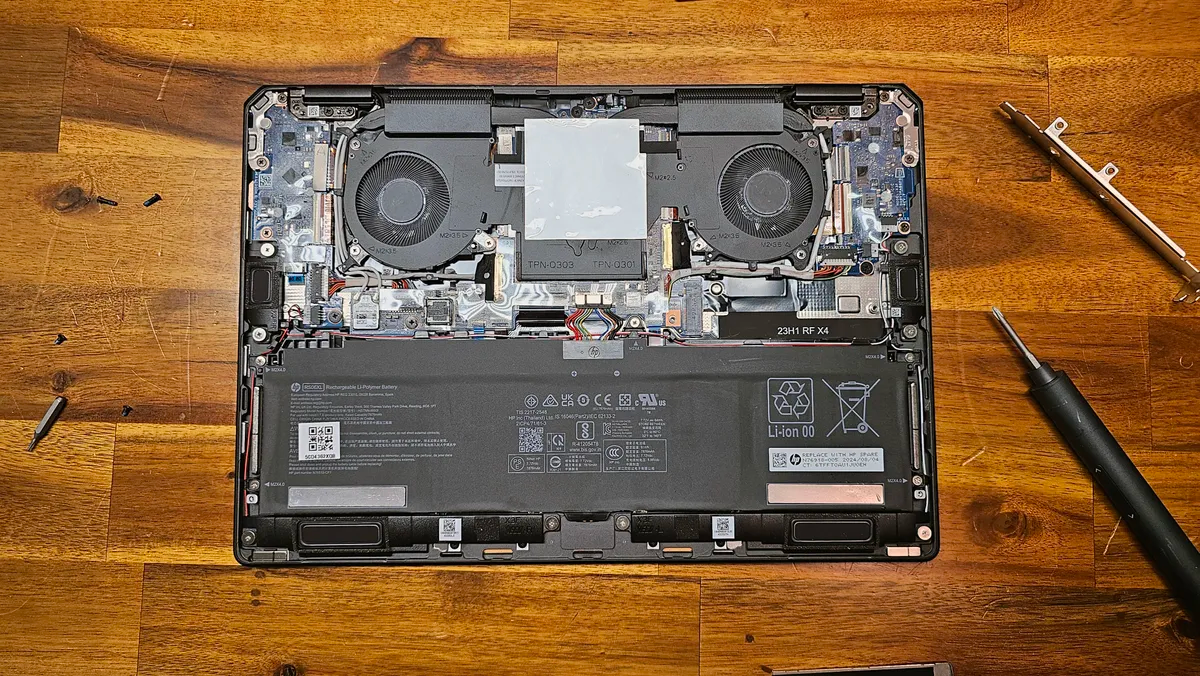
If you've had your laptop for a few years, it might be time to consider replacing the thermal pad on your laptop's SSD. (Alternatively, if your laptop's SSD doesn't have a thermal pad, you might want to consider adding one.)
This is especially the case if you're putting a new drive into your system (see below) or if your SSD is either slow or overheating. Just be sure the back of the pad also touches the metal bottom of the laptop, so the built-up heat has somewhere to dissipate.
These thermal pads are electrically non-conductive and can cool parts like your SSD, VRMs, and even soldered RAM modules.
In some gaming laptops, you might also see thermal pads applied to VRMs, chipset heatsinks, or other components. Those should last for years, but if things are chugging, that could help cool components down.
Your other option is replacing the thermal interface material (TIM, often a thermal paste) on the CPU or GPU. If it's been a few years since you bought your laptop and performance is chugging, it's possible that the paste could have dried up. That being said, you'll have to carefully remove the fans and heatsinks to do this, so you should only consider touching those if you truly know what you're doing.
Most of the components in laptops aren't meant to be replaced. RAM is more often soldered on than not these days, especially in non-gaming laptops (and, during this current RAM crisis, is extremely expensive). That leaves storage as the primary component that you can typically easily upgrade (though prices are going up there, too).
On our list of the best SSDs , we recommend the WD_Black SN7100 and the Crucial T500 for laptops. Just be sure before buying that your SSD isn’t also soldered on the board, and that there is room for the drive you are considering. Most drives you’ll find for sale are 80mm in length (2280), but some laptops only make room for shorter 30 or 42mm (2230, 2242) drives.
The WD_Black SN7100 is our go-to recommendation for a laptop SSD.
Key considerations
- Investor positioning can change fast
- Volatility remains possible near catalysts
- Macro rates and liquidity can dominate flows
Reference reading
- https://www.tomshardware.com/laptops/SPONSORED_LINK_URL
- https://www.tomshardware.com/laptops/here-are-the-tools-you-need-to-clean-up-and-upgrade-your-laptop-does-your-laptop-need-a-refresh#main
- https://www.tomshardware.com
- More Ways to Play, More Games to Love — GeForce NOW Wraps CES With Linux Support, Fire TV App, Flight Stick Controls
- RTX 5070 OLED gaming laptop slashed to $1,294 in Lenovo's blowout sale — premium 1440p 280 Hz OLED monitor drops down to $485
- Wisconsin towns reportedly signed secret NDAs for billion-dollar data center deals — Microsoft and Meta hide behind confidential agreements
- Maingear brings back the 90s nostalgia with old-school pre-built PCs with RTX 5090 and Ryzen 9 9950X3D — limited edition Retro98 PCs are available now
- Into the Omniverse: Physical AI Open Models and Frameworks Advance Robots and Autonomous Systems
Informational only. No financial advice. Do your own research.